Glyph is moving to desktop
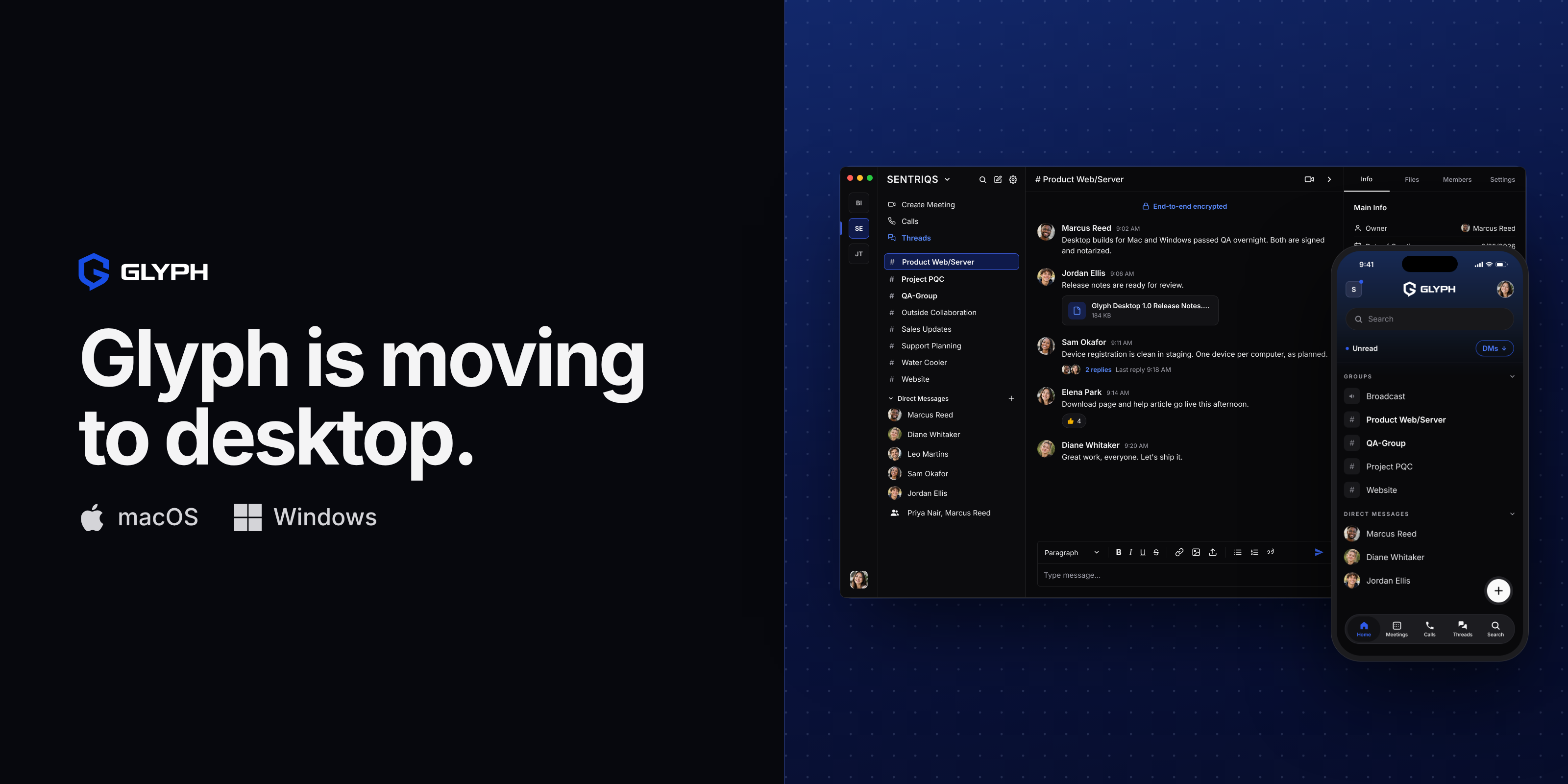
Glyph for desktop is coming to Windows and macOS on January 5, 2027. Joining meetings isn't changing. Meeting links still open in your browser, and guests can join with nothing to download.
Download Glyph: get.glyphapp.io, starting January 5, 2027
What's changing
| Where | Status | What you can do |
|---|---|---|
| Desktop app (Windows, macOS) | New | Groups and DMs, threads and files, huddles and calls, workspace settings |
| Mobile apps (iPhone, Android) | No change | Everything you use today. |
| Browser | Guest meetings only | External guests join a meeting from a link, with nothing to download. Groups, DMs and files no longer open in the browser. |
Why meetings stay in the browser: We want hosts to be able to bring outside guests into a meeting without asking them to install anything, so browser support continues for meetings.
Why we're making this change
Glyph is end-to-end encrypted, and every device has its own keys. A browser is a poor place to keep those keys. The desktop app is built to improve four key areas.
One computer is one device
Today, Glyph counts every browser and every browser profile as a separate device. Chrome, Safari and Firefox on one laptop show up as three devices, and each one has to be added to each of your groups. A member with four browsers in ten groups has forty device and group pairs to manage.
The desktop app counts as one device per computer, so your device list will get shorter and admins will have fewer trust decisions to make.
Your keys don't disappear with your browser data
In the browser, Glyph keeps each device's keys in the browser's site storage. If that storage is cleared, the keys and content go with it. There is no recovery: you have to set up a new device and rejoin every group.
The desktop app protects your keys with your operating system's built-in encryption: Keychain on macOS and the Windows Data Protection API (DPAPI) on Windows. Both are tied to your computer sign-in and kept separate from your browser, so your keys are better protected and clearing browser data no longer affects Glyph.
Glyph runs on its own
Browser extensions can read and change the pages you visit, and Glyph shares the browser with every other tab you have open. The desktop app runs as its own application, separate from your browser and its extensions.
Notifications you won't miss
In the browser, Glyph can only alert you if you allow notifications for the site. That prompt is easy to dismiss or block by accident, and once it's blocked you stop getting alerts without realizing it. Turning it back on means digging through your browser's site settings.
The desktop app uses your computer's own notifications. You set them up once when you install the app, and you can change them anytime in macOS System Settings or Windows Settings.
The encryption itself does not change. Glyph still uses MLS for group encryption and NIST-approved post-quantum algorithms. See Security Model.
Switch to the desktop app
Glyph for desktop will be available on January 5, 2027. Once it is, follow these steps.
- Download the app. Go to get.glyphapp.io and choose macOS or Windows. Open the installer and follow the prompts.
- Sign in. Use your usual email, password and multi-factor authentication. When asked, give the device a name you'll recognize, such as Work laptop.
- Add the device to your groups. Open your groups and select Add This Device. You can't read or post in a group until this device is added.
- Remove your old browser devices. In the desktop app, go to Authentication & Settings → Devices & Sessions and remove each browser you no longer use.
For workspace admins
- Expect members' device lists to change. New desktop devices will appear, and browser devices should be removed once members have switched.
- In open groups, members can add their desktop device themselves.
- Share this page with your workspace now so members know what's coming. After launch, a banner in the browser app will point them here.
FAQ
When can I download it?
Glyph for desktop will be available on January 5, 2027, at get.glyphapp.io. Until then, keep using the browser app as usual.
Can I still join meetings in a browser?
Yes. Open the meeting link from your host in any supported browser. Guests can still join with Join As Guest. See Joining a meeting as a guest.
What happens if I open the browser app after it retires?
You'll see a page that links to the desktop download. Meeting links still work.
Is there a Linux version?
Not at this time. If you'd use Glyph on Linux, email support@glyphapp.io and let us know. Requests help us prioritize the work.
My organization manages my computer. Can I install the app?
Ask your IT team or workspace admin. They can install it for you or approve the installer.
Need help?
Contact your workspace admin or email support@glyphapp.io.