Video Huddles and Calls
One of GLYPH's most powerful features, Huddles, allows group members to meet privately with just two clicks. Additionally, Huddles include a built-in calling feature, enabling you to contact workspace members whether they're at their desk or on the go.
Starting a Video Huddle
- Video Huddles can only be joined by group members, unless invited by a workspace administrator or manager, see Account Roles.
- Select the group you would like to huddle with and click the
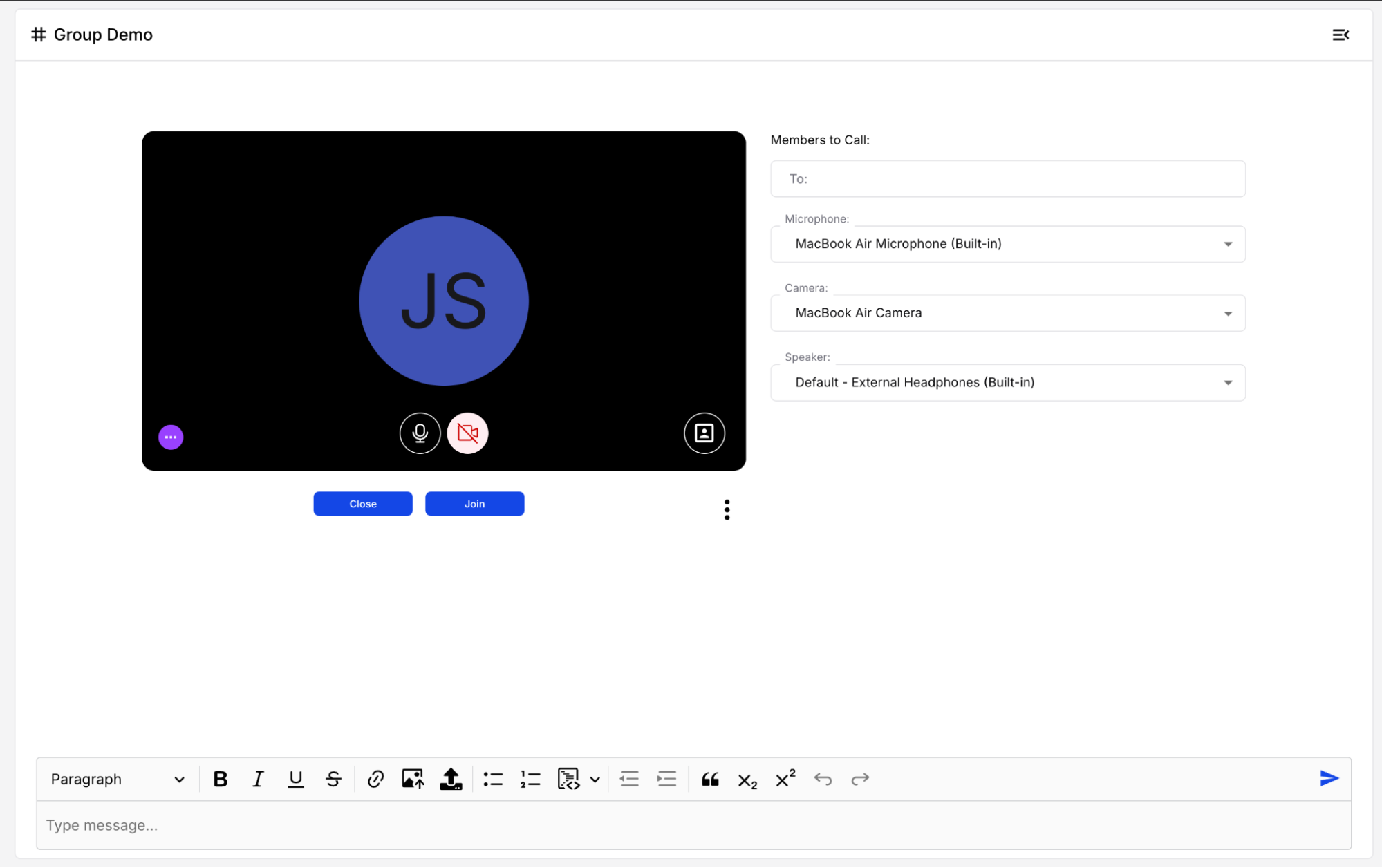
 icon in the top right-hand corner of the screen. You will be taken to a pre-huddle screen.
- On web, you can select group members you'd like to call once the huddle is launched.
- In a direct message chat, you will call the user(s) automatically once the huddle is launched.
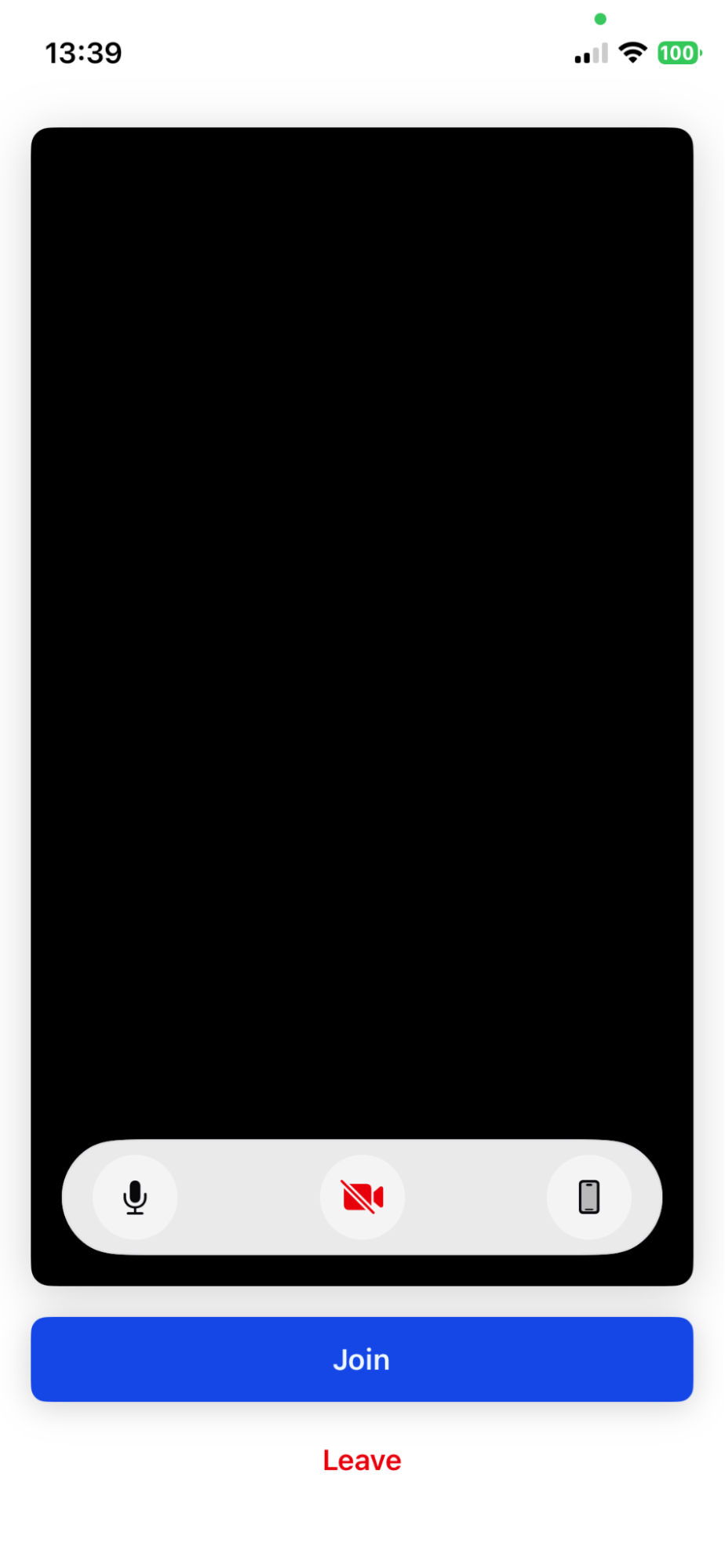
- If joining a huddle in progress, click Join from the pre-huddle screen.
- Web
- Mobile
Huddle Controls
- Web
- iOS
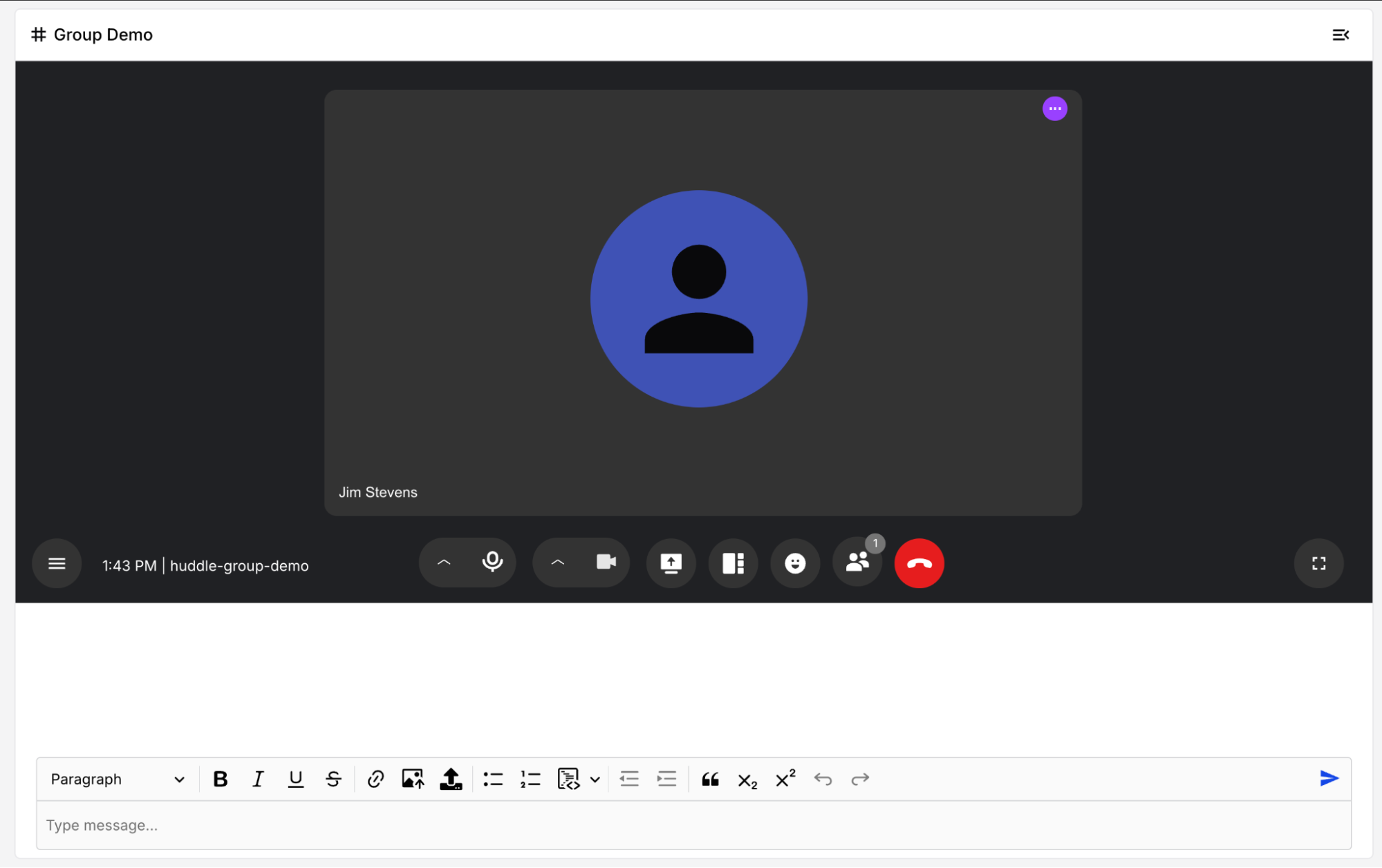
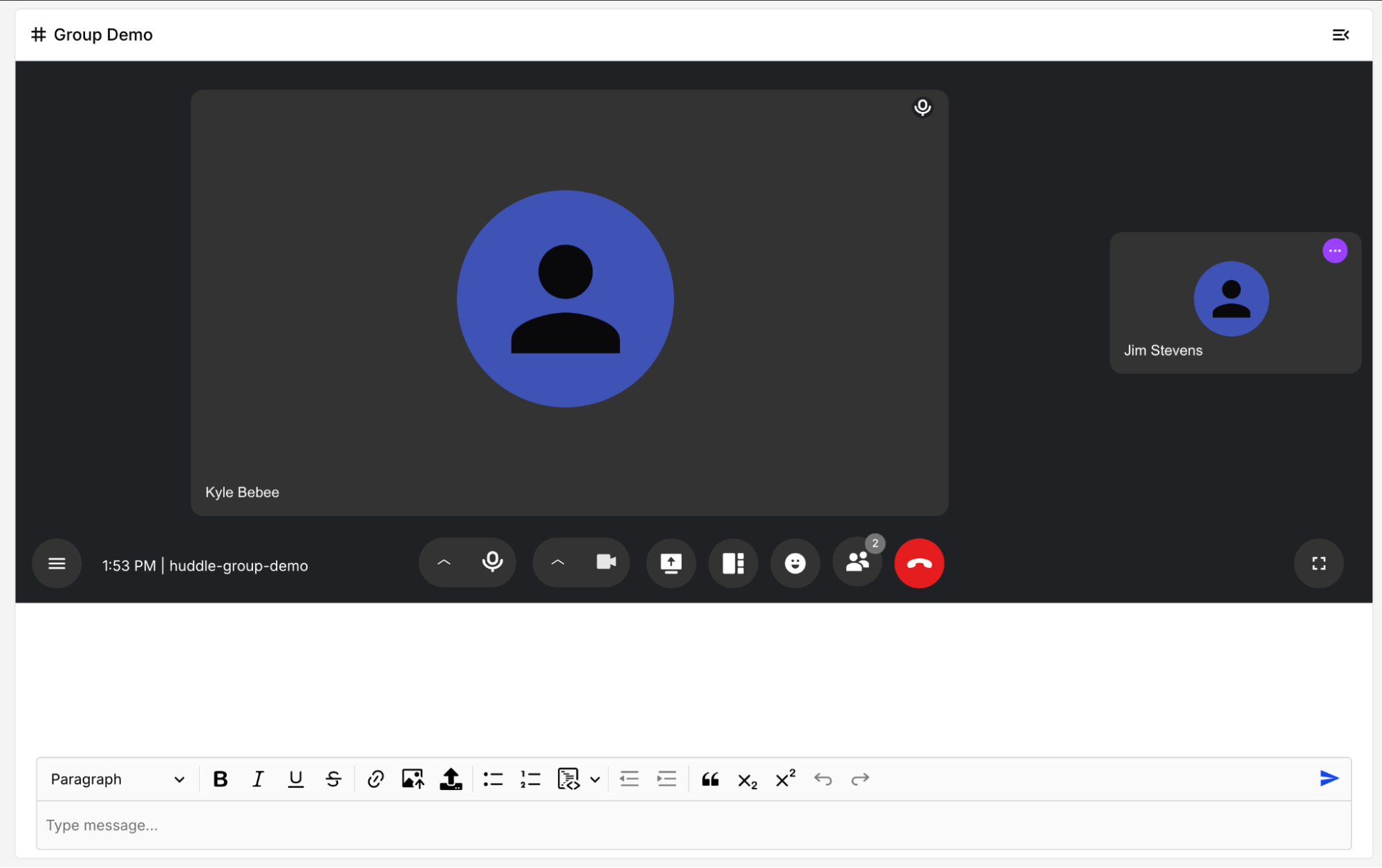
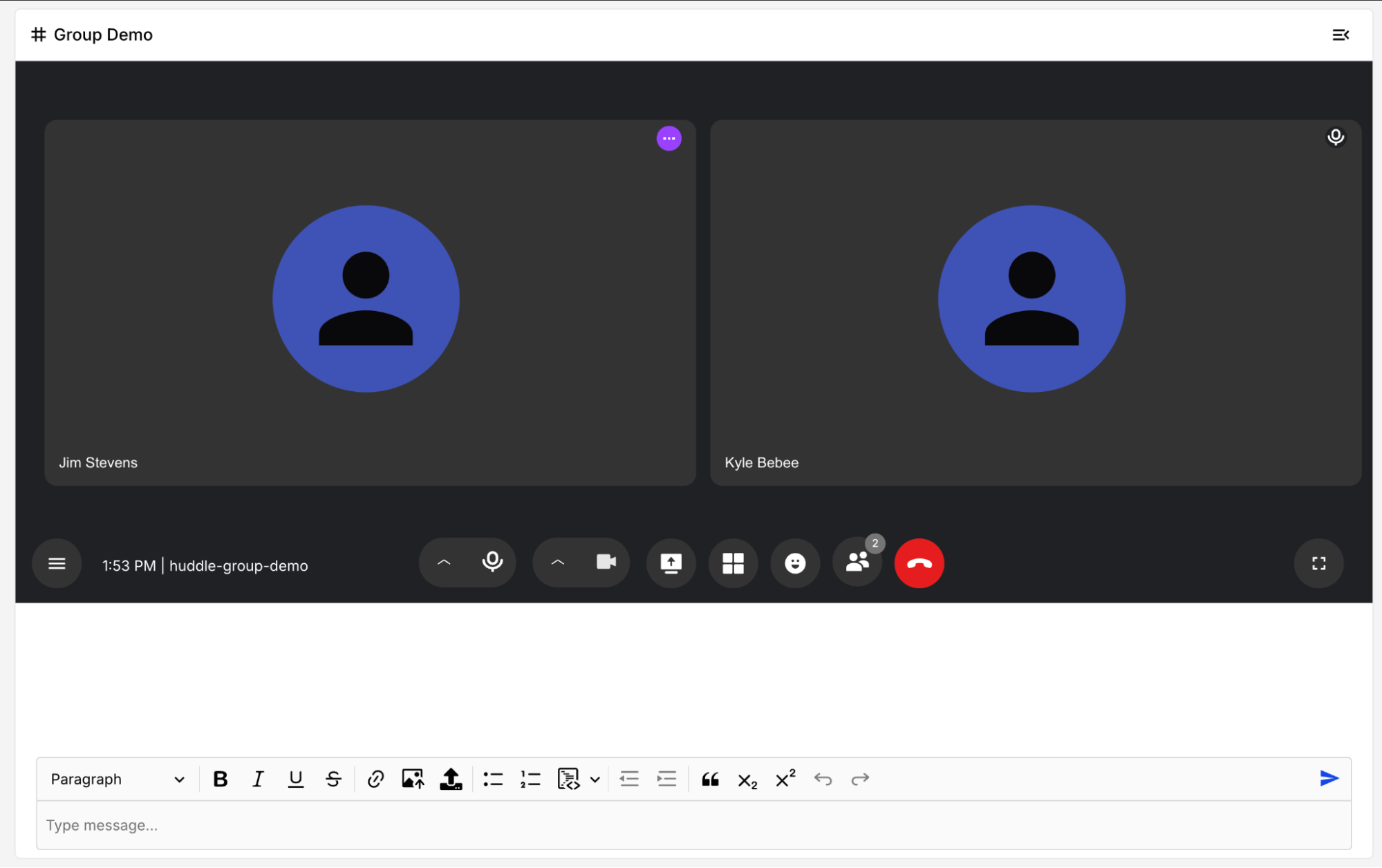
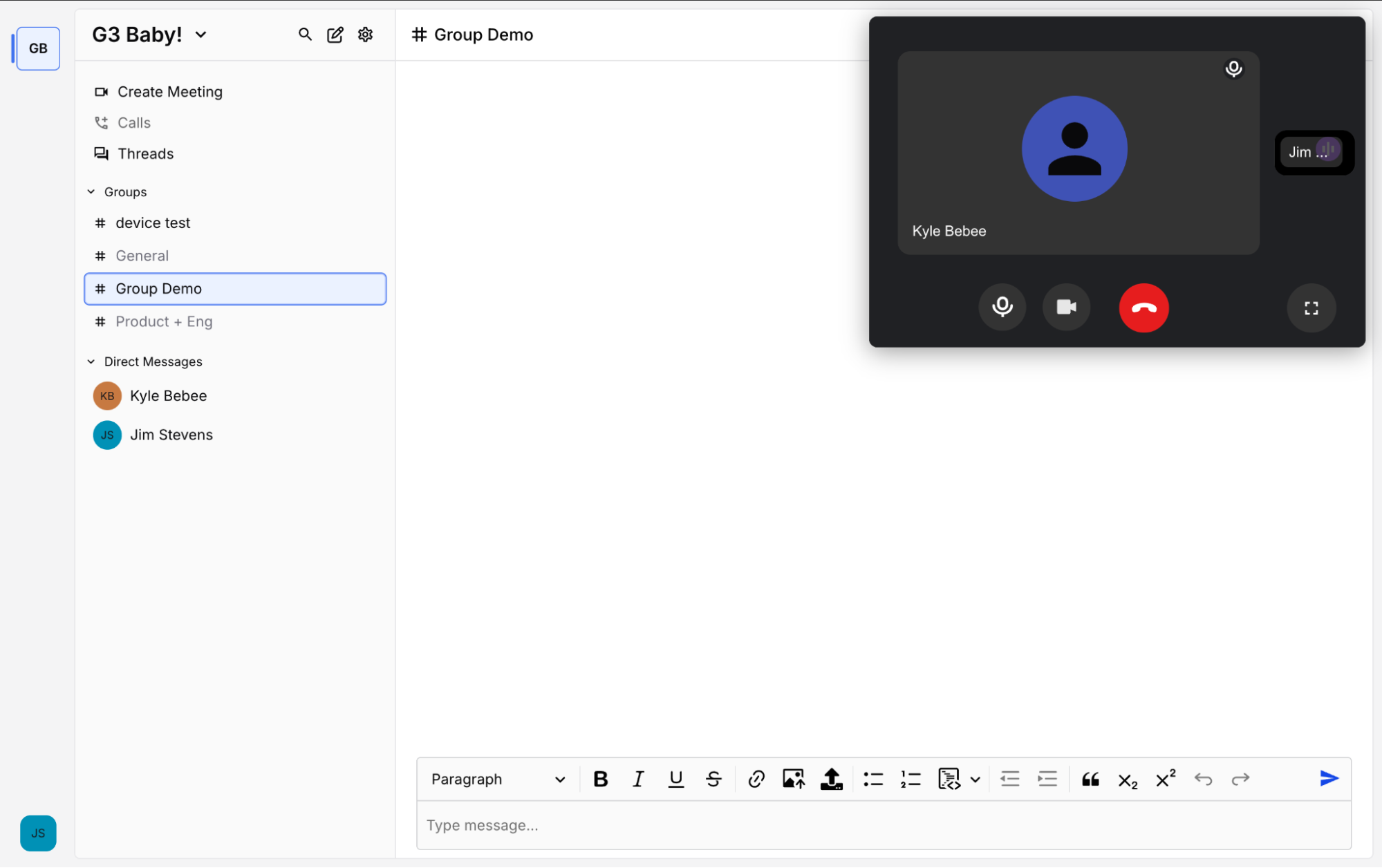
- Hover your pointer at the bottom of the huddle screen to bring up controls:
 Group list — chat in any chats you participate in.
- Camera & microphone — toggle your camera and microphone on/off.
- Share screen — share your entire screen, a browser tab, or an application.

 Expand / minimize — resize your huddle screen to use messaging.
 Leave — leave the huddle.
- Layout — switch between Active Speaker and Grid layouts.
 Reactions — send reactions.
 Participant list — view the participant list.
- You can mute other participants for yourself by hovering your pointer over their video and clicking the speaker icon in the top right-hand corner of their video.
- When the speaker view is active or someone is sharing their screen, you can select which screen or participant to pin by clicking on their feed.
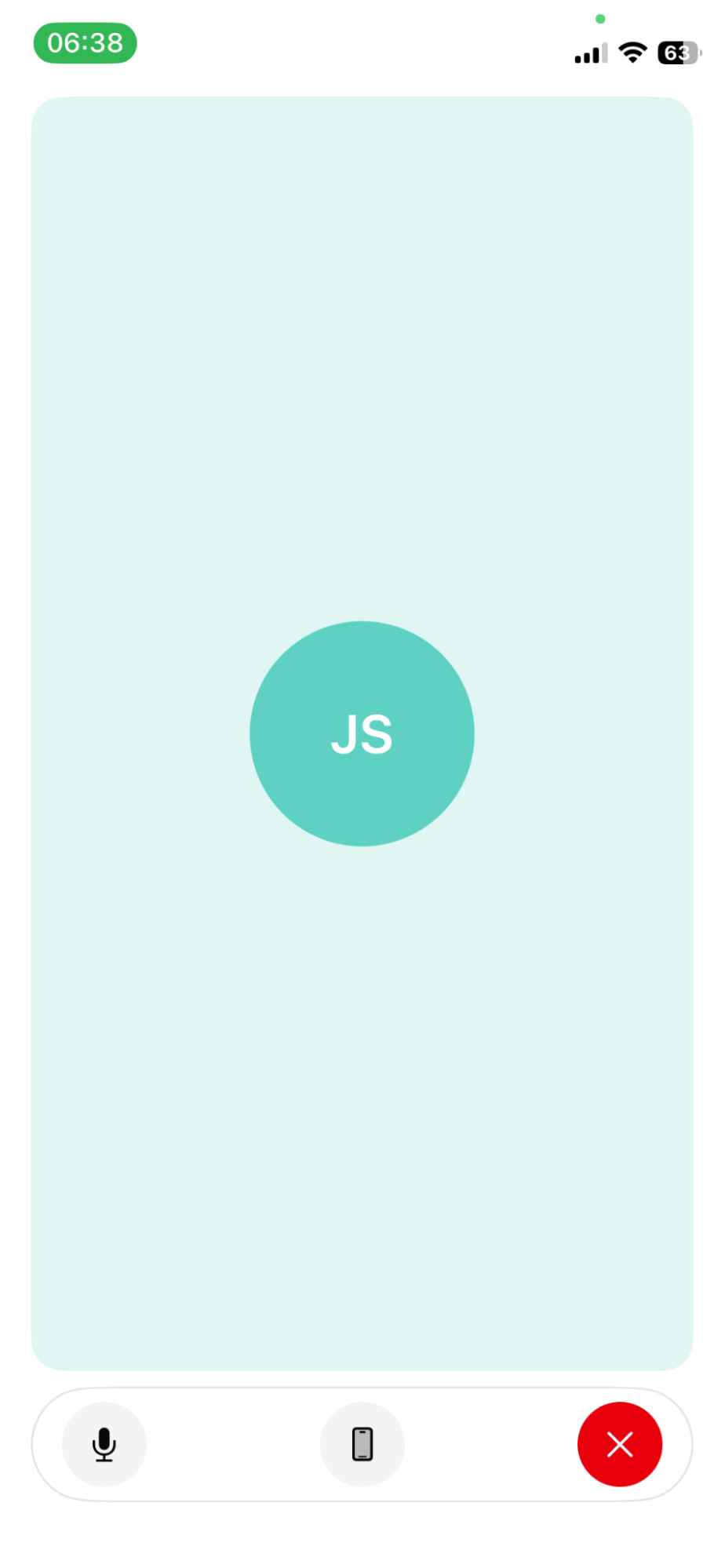
- Message icon to navigate back to chat, you can return to the call by selecting the red camera or phone icon.
- Camera and microphone icons to toggle your camera and microphone on/off.
- Switch camera by tapping your video feed, then tapping the swap camera icon.
- Leave icon to leave the huddle.
- When someone is sharing their screen, you can expand or minimize the shared screen.
- Toggle speakerphone on or off.
Starting a Call
- Web
- iOS
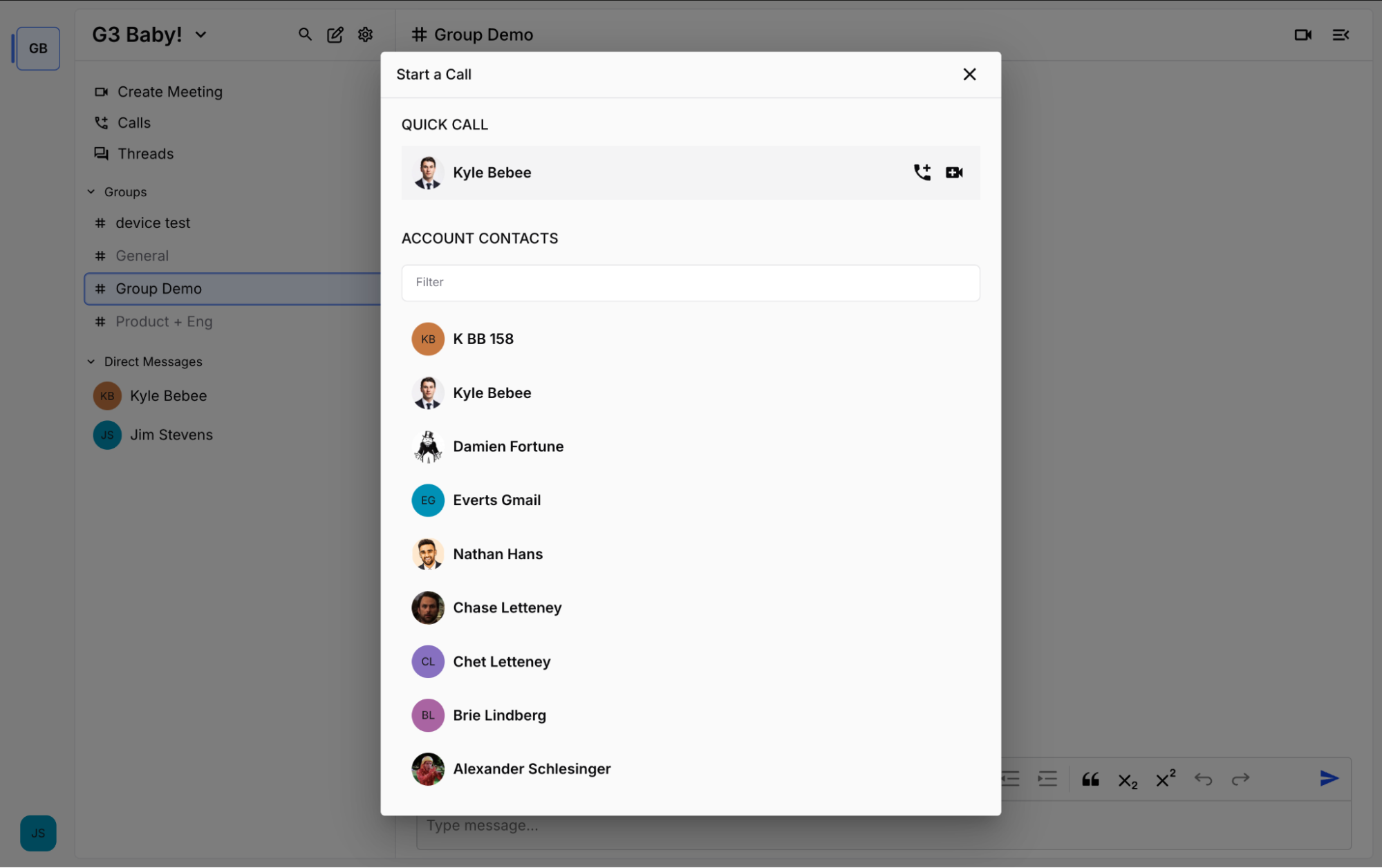
- Select the Calls icon.
- Search for a coworker.
- Hover and select Start Voice Call or Start Video Call.
-or-
- Select a member in your direct message list and click the camera icon in the top right corner of your screen.
- You'll now be in a pre-call screen. Once you click "Join," the other members will receive a call notification on participating devices.
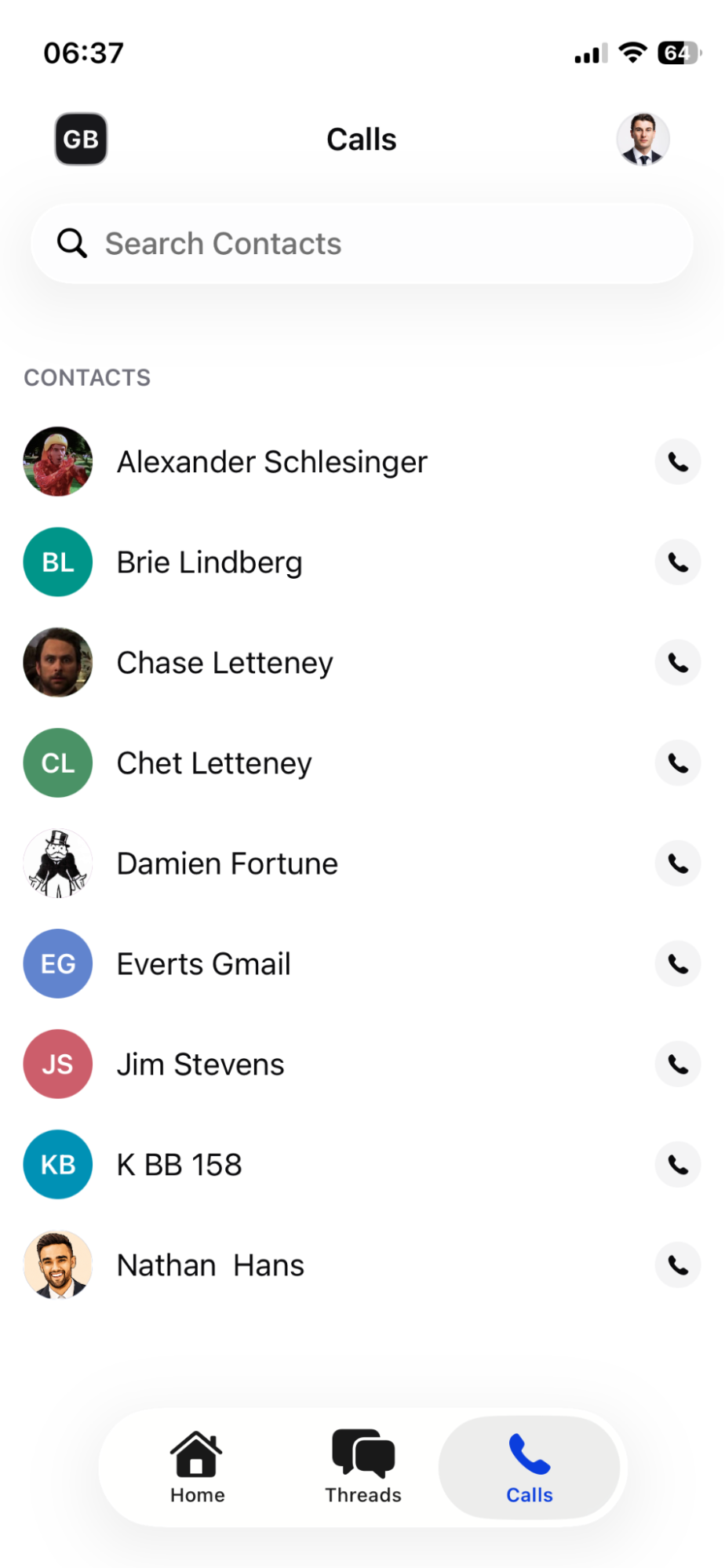
- Navigate to Calls and tap the participant you'd like to call.
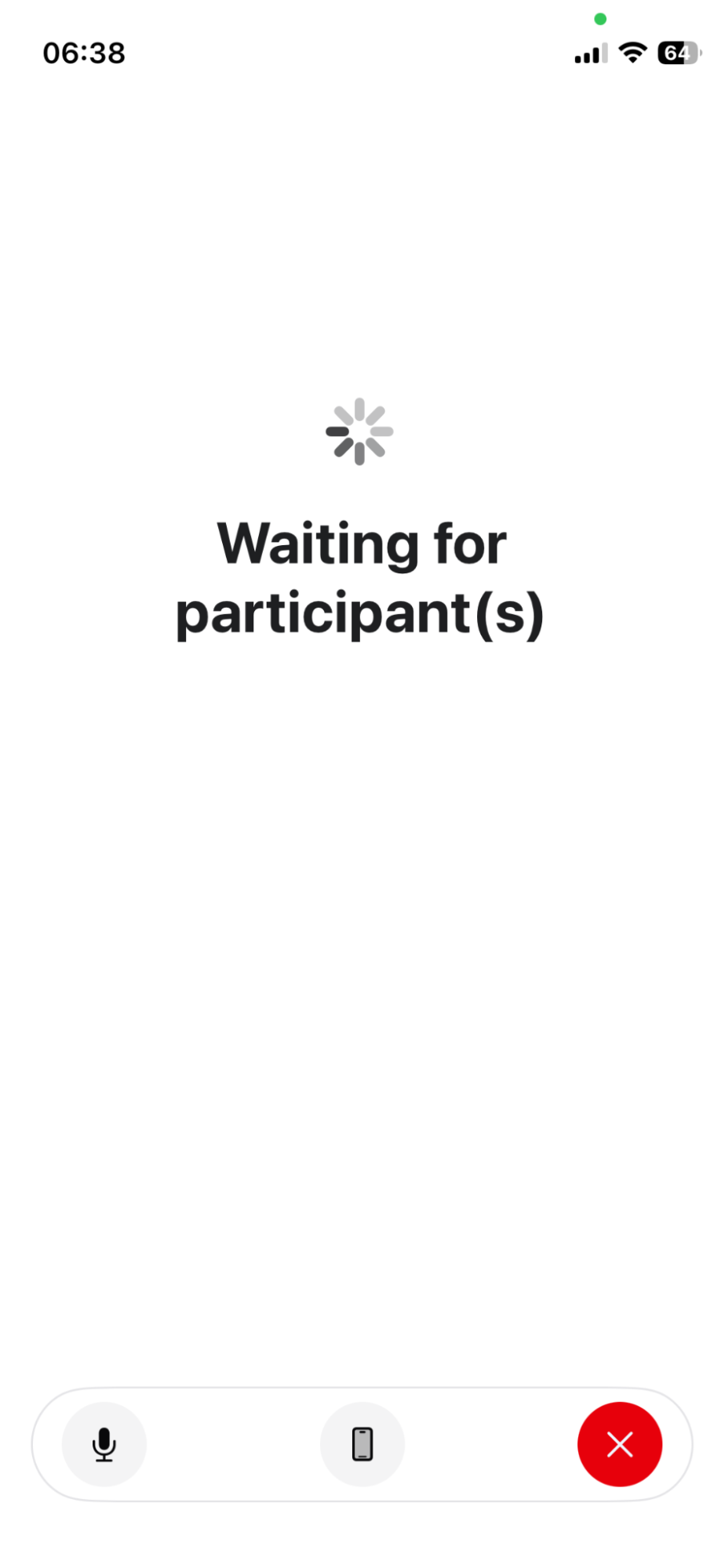
- You'll hear a ringback tone while waiting for the other member to answer.
- If the other members don't answer, the call will eventually timeout.
- Once answered, the call will connect with voice only, but participants can turn their cameras on and will have access to the same controls as a huddle.
Answering a Call
- Web
- iOS
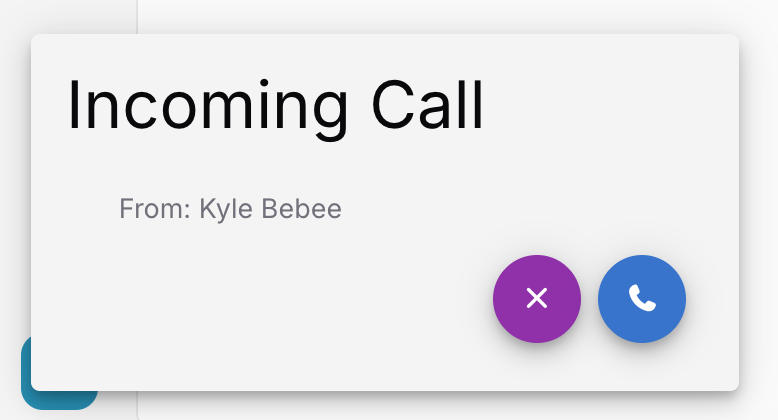
- If you're logged into GLYPH on the web and your browser notification settings are set to allow, you'll be able to receive call notifications.
- When a call notification appears, click the phone icon to accept the call.
- You'll be taken to the pre-call screen. Click "Join" when ready.
- Answering a call while your phone is locked will connect you with voice only. You can use the native call view to toggle speakerphone, mute your microphone, or launch the GLYPH app to turn your camera on.
- Answering while your phone is unlocked will open GLYPH and connect you with voice only. Participants will have access to the same controls as a huddle.