Messaging and Notifications
GLYPH has all the core messaging features you'd expect in a collaboration application. From formatting your text and sharing files to @mentions and threading, GLYPH ensures seamless and effective communication within your workspace.
Rich Text Editor
You can control the appearance of your text by using the formatting tools provided:
- Paragraph and heading size.
- Bold, italicize, underline and strikethrough.
- Insert hyperlinks.
- Upload images and files.
- Bullet Lists and number lists.
- Code block, block quotes, subscript and superscript.

Push Notifications
Allow push notifications upon first login to receive message notifications in groups you participate in.
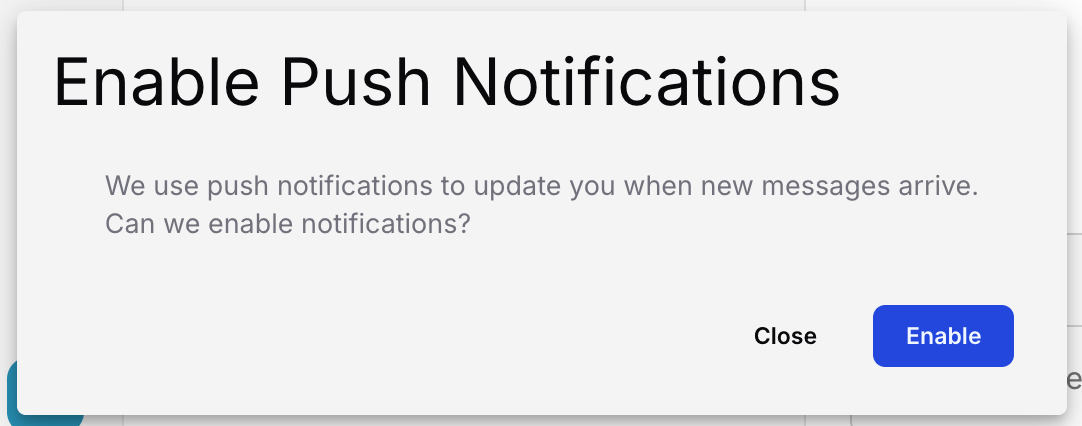
To adjust your device notification settings:
- Web
- iOS
- Chrome, Edge or Firefox: Log in to GLYPH, click the site information icon in the URL bar to view your notification permission settings.
- macOS Safari: Log in to GLYPH > Go to Safari > Settings > Notifications > Set GLYPH to Allow.
- Go to the Settings app > Notifications > GLYPH.
@ Mentions
- Typing @ into the message box will bring up the group member list.
- Select a members name, repeat for each member you'd like to mention.
- Send your message.
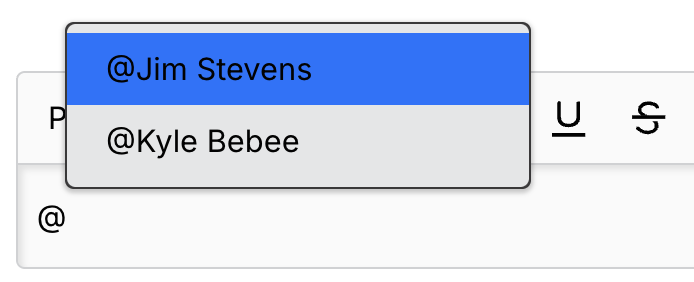
- @mentions will notify the member(s) by sending a push notification and highlighting the group in blue text for that member(s).
- Other group message activity will not send push notifications and will highlight the group in bold white text.
- Direct Messages will always send a push notification to each participant, even without @mentions
Dismiss New Message Indicator and App Badges
New messages will highlight your groups:
- Bold blue for @mentions and direct messages
- Bold white for other group message activity
To dismiss the new message indicator or app badges:
- Click into the message field – Selecting the group and clicking in the message input field will send a read receipt, clearing the indicator.
- Scroll to the latest message – If enough messages have been posted, scrolling to the newest message will also mark them as read and dismiss the indicator.
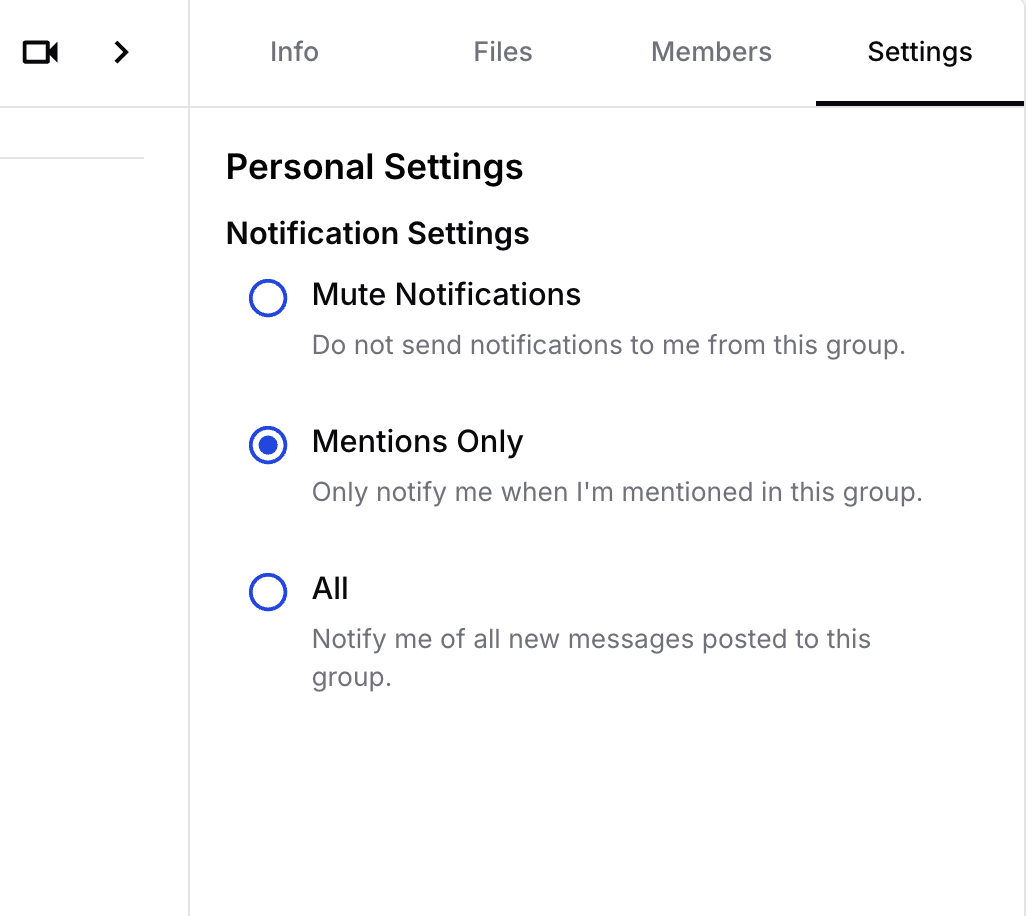
Personal Notification Settings
- You can adjust your group notification settings by going into the Group Settings view.
- Changes to notification settings will apply to all your participating devices.
Message Threads
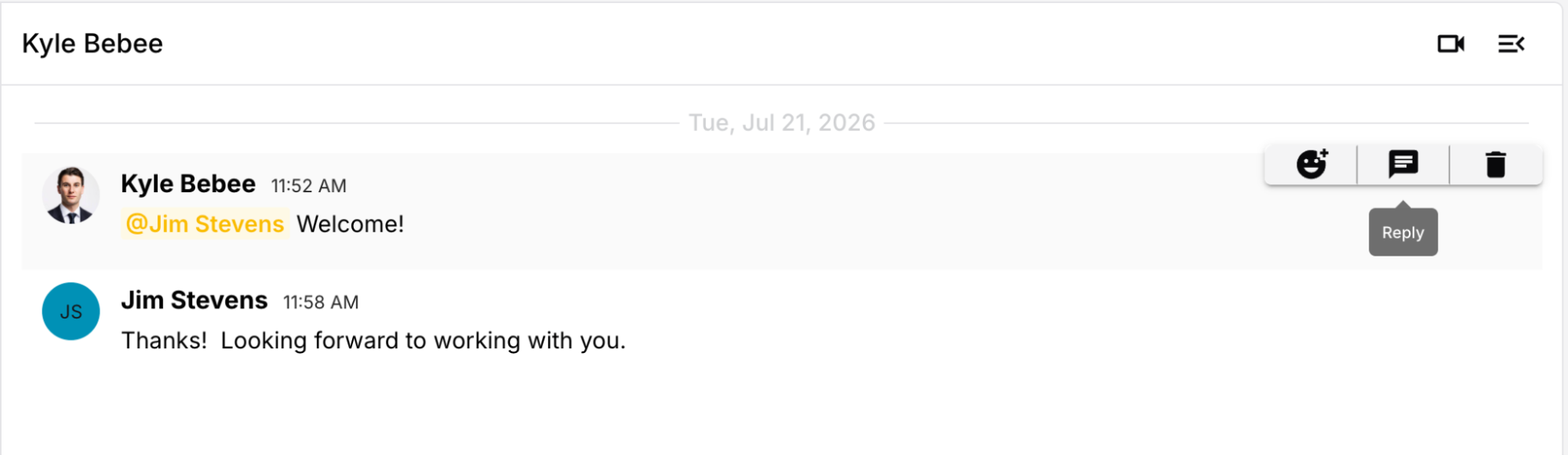
Message threads are created when you reply to a specific message:
- Highlight a message and click the message icon to start a thread.
Deleting Messages
- Web
- Mobile
-
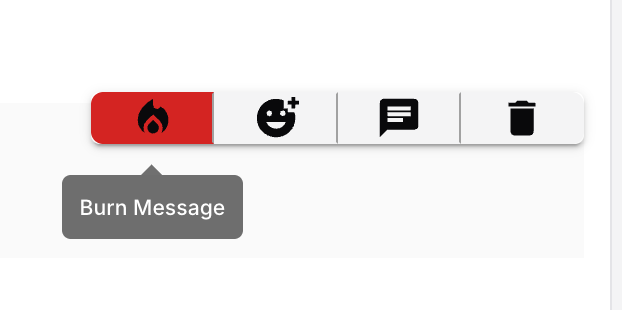
Highlight the message and click the burn icon. Burning a message will delete the message for all participants.
-
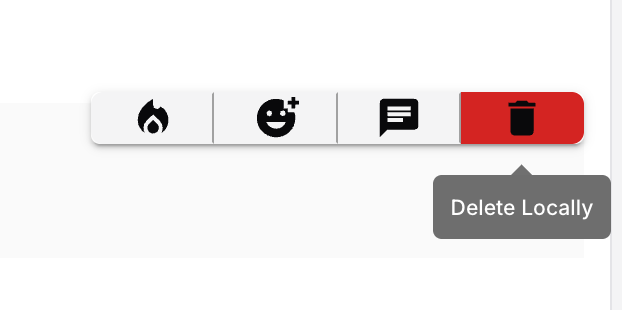
Highlight the message and click the trash can icon. This will delete the message on this device only.
-
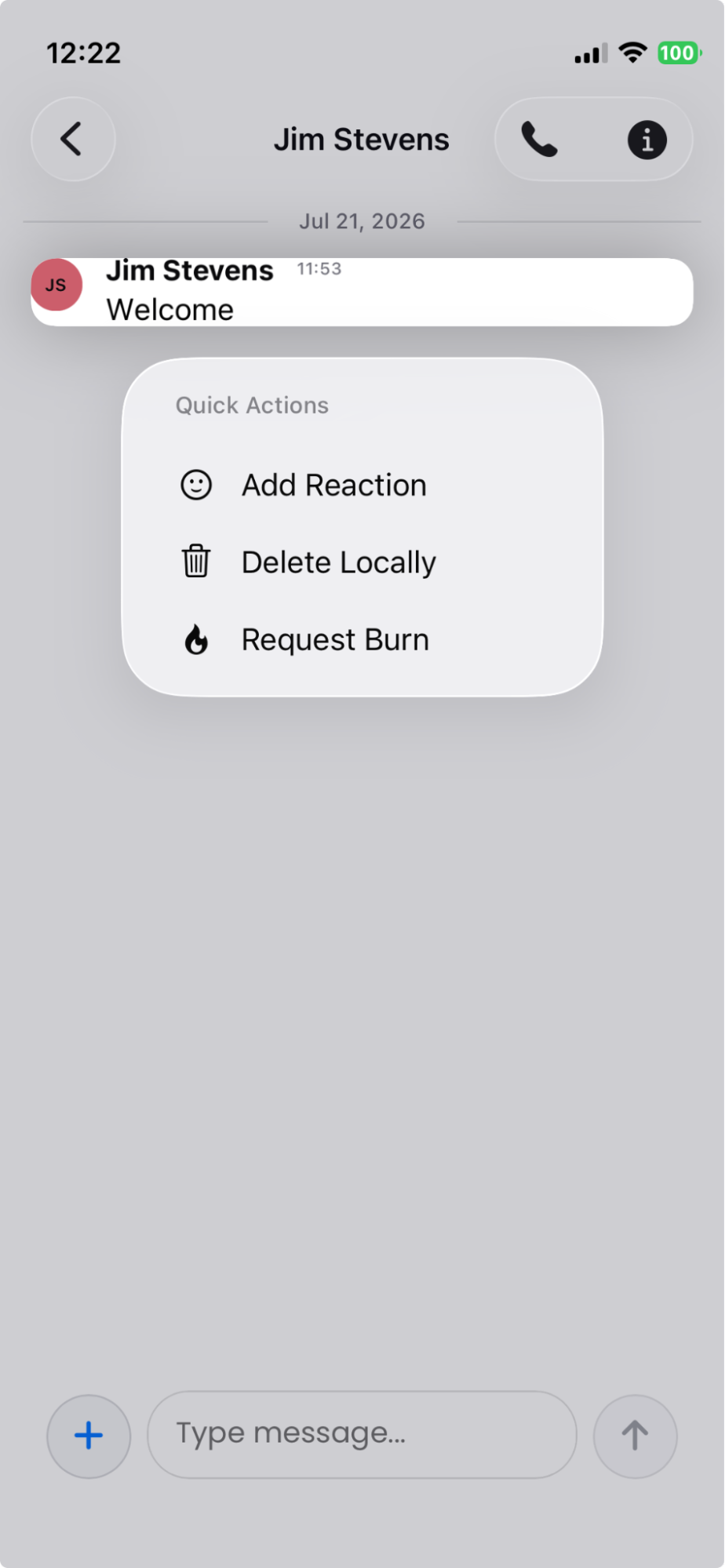
Long press on a message to delete locally (this device only) or request burn (all members' devices).