Joining a GLYPH meetingas a guest.
This guide walks through the steps to join a GLYPH meeting as a guest, from the meeting link to admission by the host.
Open the meeting link
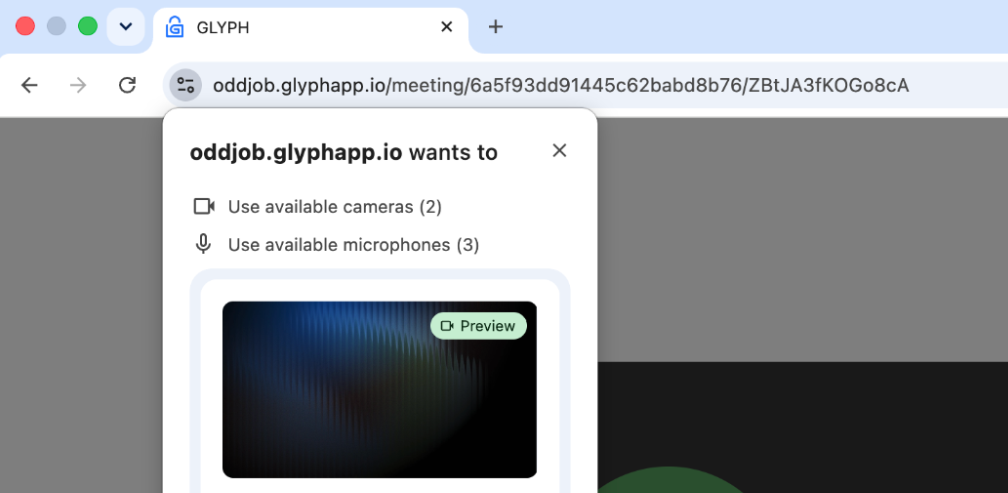
Click the meeting link your host sent you. It opens in your browser — no download required. GLYPH meeting links look like this:
If you're already signed in to a GLYPH account, you'll skip straight to Step 03. Otherwise, you'll land on the meeting's sign-in screen.
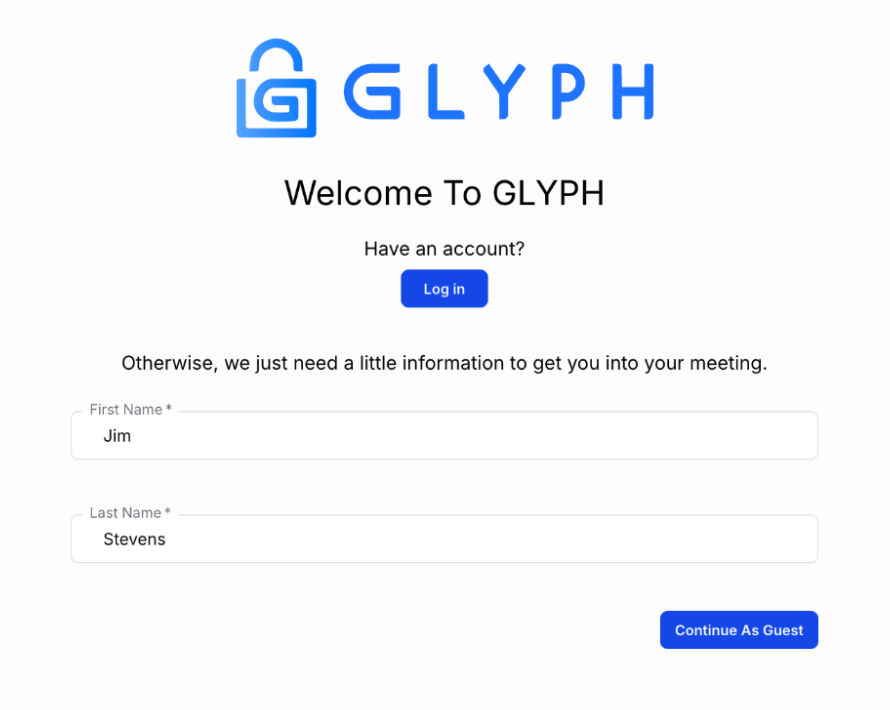
Pick a way in
If you already have a GLYPH account, click Log in and enter your credentials. You'll go straight to the waiting room.
No account? Enter your first and last name in the guest fields, then click Continue as Guest. The host will see exactly the name you typed — use the one they're expecting.
Set up in the waiting room
You're now in the waiting room. Before you knock, get your devices right:
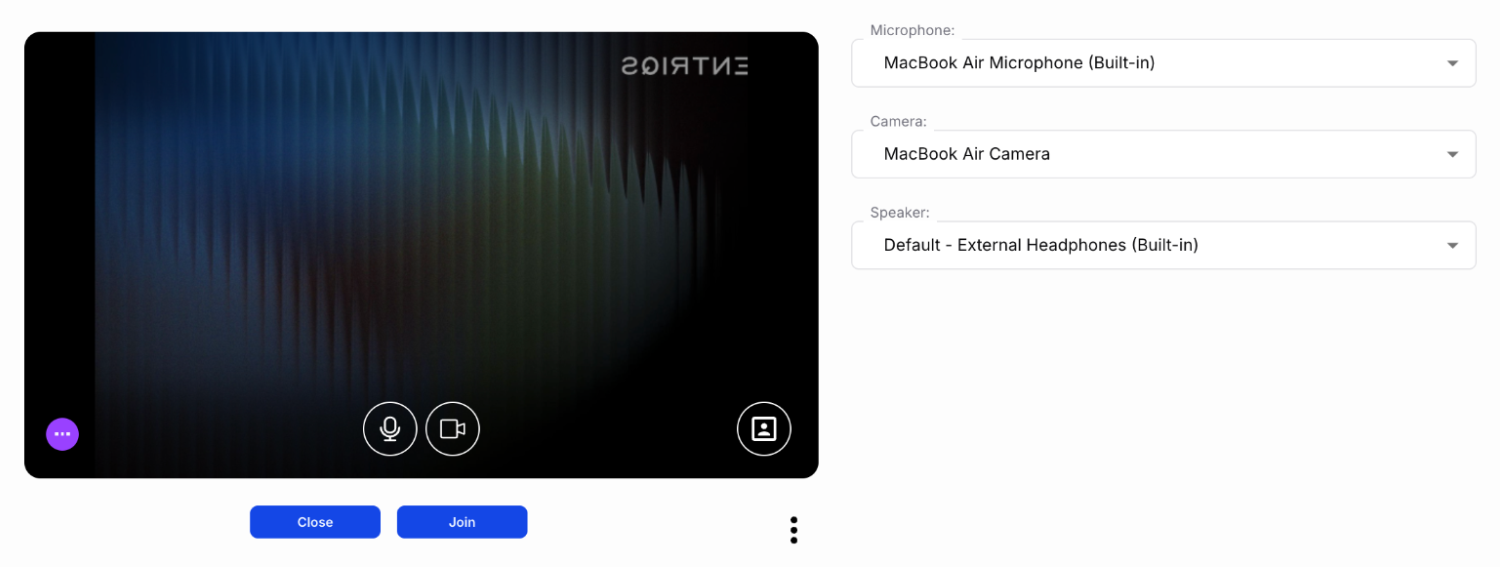
- Pick your microphone from the audio dropdown — speak briefly and watch the level meter move.
- Pick your camera from the video dropdown — you'll see your own preview tile.
- Allow browser permissions if prompted. Without these, the host can let you in but can't hear or see you.
When you're ready, click Join. This notifies the host that you're waiting.
The host lets you in
The host sees your name appear in their participants list and clicks Allow user in. That admits you to the meeting — you'll join with the mic and camera you selected.