GLYPH Admin TrainingA guide for new administrators.
A guide for new administrators learning to operate a GLYPH workspace.
Welcome
Welcome. This handout gets you ready to run a GLYPH workspace for your organization.
GLYPH is an ultra-secure collaboration platform. On the surface, it'll feel familiar — workspaces, groups, direct messages, huddles, file sharing. If you've used Slack or Microsoft Teams, you already have most of the mental model. What's different is what's underneath: GLYPH is built on the MLS protocol (the IETF standard for end-to-end encrypted group messaging) and uses NIST-approved post-quantum cryptography to protect every message, file, and call. That security model is a major advantage — and it changes a handful of things about your role as admin. We'll call those out as we go.
This handout will help you:
- Picture how a GLYPH workspace is organized (workspaces, groups, DMs, teams, devices).
- Distinguish the two role systems — workspace roles and group roles — and assign them correctly.
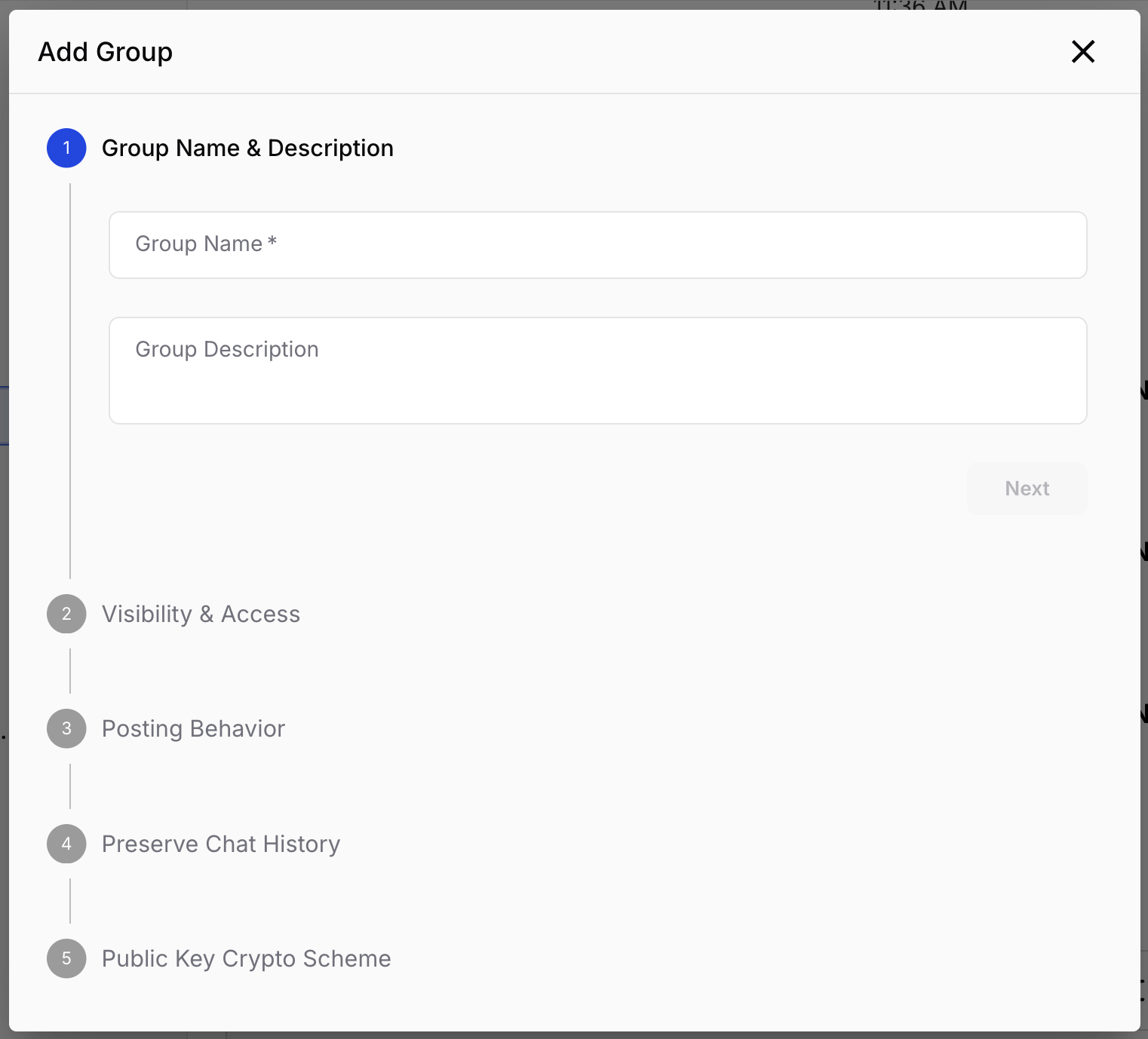
- Choose the right settings when creating a group (visibility, posting mode, crypto scheme, chat history).
- Stand up a new workspace from zero: archiving, initial groups, invitations, member management.
- Run the workspace day-to-day: managing members, devices, teams, and groups.
- Recognize the most common gotchas before they bite you.
If something here conflicts with the live product, trust the product and tell your point of contact — these docs evolve alongside the platform.
The building blocks
Before doing anything, picture the shape of GLYPH. It's built from five concepts — get these straight and the rest of the handout falls into place.
Workspace
A workspace is your organization's home in GLYPH. It contains your groups, teams, admin settings, and the memberships connecting users to your organization. Most orgs only need one — think of it like a single Slack instance or Teams tenant.
Users
The most important distinction to internalize early: users and their devices exist outside of any single workspace. A user is a person with a GLYPH account; their account, identity, and devices belong to them, not your organization.
A user can be in many workspaces at once — a contractor working with two clients, an executive sitting on a partner's board, a vendor with access to several customers. In each workspace, that user can hold a different role, see different groups, and have different teams assigned. None of that bleeds across.
What this means for you: your responsibility extends only to your workspace's view of a user. You decide their role here, which of your groups they're in, and which of their devices can participate in your groups. You cannot see their other workspaces, manage their identity, reset their account, or touch their devices in any other context. When you remove someone, they don't disappear from GLYPH — they just lose access to what your workspace controls.
Groups
Groups are where conversations happen — the GLYPH equivalent of a Slack channel: a persistent, topic-scoped space where members exchange messages, share files, and run video huddles.
Every group is defined by three independent settings at creation:
- Visibility — Open (anyone can find and join) or Private (invite-only, hidden from the directory).
- Posting mode — Normal, Broadcast, or Submission. Controls who can post and who can read. Cannot be changed later.
- Crypto scheme — Elliptic Curve or CRYSTALS (post-quantum). Can be migrated later.
We unpack each in §4.
Direct Messages (DMs)
Direct messages are 1:1 or small-group conversations outside any group. Use them for off-topic chatter, quick questions, or small ad-hoc coordination. Same encryption model as groups; just lighter-weight and not organized around a stable membership.
Teams
Teams are easy to misread. Despite the name, a team is not a conversation surface — you don't post in a team, and a team has no messages of its own. A team is a tagging primitive: a named bundle of people that you can @mention inside any group.
Example: create a team engineering-leads with five members. Later, in a project group, someone types @engineering-leads — the tag notifies all five who are already in that project group. Team members who aren't in the group don't get notified, and don't gain access. (Intentional, and an encryption requirement — see §7.)
Devices
In most collaboration tools, "a user" and "their account" are interchangeable. In GLYPH, what really matters is devices. Every phone, laptop, or browser someone logs in from is authenticated individually and added to their device list. One person with a work laptop, personal phone, and tablet = three trust decisions, not one.
Part of GLYPH's zero-trust model, and it shapes admin work directly: when you "add someone to a group," you're really choosing which of their devices are in that group. When you remove someone, you're choosing which devices lose access. More in §9.
The two role systems
GLYPH has two separate role systems, and conflating them is the single most common source of admin confusion.
- Workspace roles — assigned when you invite someone. Govern what they can do across the whole workspace.
- Group roles — assigned per-group. Govern what they can do inside a specific group.
A user has exactly one workspace role at any given time, and a separate group role for every group they're a member of. The two systems run in parallel.
Workspace roles
Four workspace roles. Set during invitation (or edited later from the member admin panel).
| Role | Invite members | Manage any group | Enable archiving | Browse open groups | Notes |
|---|---|---|---|---|---|
| Admin | Yes | Yes | Yes | Yes | Full control. Required to set up archiving. |
| Manager | Yes | Yes | No | Yes | Same as Admin minus archiving. |
| User | No | Only in groups they create | No | Yes | The default. Can still create their own groups and own them. |
| Guest | No | No | No | No | Limited reach: can only see and use groups they've been explicitly added to. Use sparingly. |
A few non-obvious points:
- Admins and Managers have group-management privileges across every group in the workspace, even groups they didn't create and aren't members of. This is an override that comes with the workspace role.
- A workspace User is not powerless — when they create a group, they automatically become its Owner and can manage it like any other group owner. The User role just doesn't grant authority over groups they didn't create.
- Guests are deliberately limited. They can't browse the Open groups directory, can't invite others, and won't see anything you don't hand them directly. Use the Guest role for external collaborators (vendors, customers, auditors) when you want a hard ceiling on their access.
Group roles
Four group roles. Every member of a group has one. Assigned by the group's owners and managers; default based on posting mode.
| Role | Add/remove members & devices | Promote/demote | Change crypto scheme | Edit name/description/visibility | Default in… |
|---|---|---|---|---|---|
| Owner | Yes | Yes | Yes | Yes | The user who created the group. |
| Manager | Yes | Yes | Yes | No | Promoted by an owner. |
| User | Only their own devices | No | No | No | Normal groups. |
| Observer | Only their own devices | No | No | No | Broadcast groups. Read-only — sees messages, cannot post. |
How the two systems interact
The cleanest way to hold this in your head: the workspace role decides whether you're allowed to touch a group at all; the group role decides what you can do once you're inside it.
A few illustrative cases:
- Workspace Admin, not a member of group X. You can still manage group X's membership and devices from the admin panel (workspace-level override). But you can't read its messages — you're not in the group.
- Workspace User, Owner of group X. Inside group X you have full control: promote/demote, change crypto, rename, add/remove members. Outside group X your workspace-level powers are minimal.
- Workspace Guest, Observer in a Broadcast group. Sees messages, can't post, can't browse for more groups. Hard ceiling.
- Workspace Admin posting in a Broadcast group. Workspace Admins (along with Owners and Managers) can post in Broadcast groups even without holding a group role that would normally allow it — another workspace-level override.
Quick reference: Account roles, Group roles & permissions.
Anatomy of a group — the four knobs
Every group creation involves four decisions beyond name and description. One is permanent, so pause before clicking Create.
The four knobs:
- Visibility — Open or Private. Changeable later.
- Posting mode — Normal, Broadcast, or Submission. Locked at creation. Cannot be changed.
- Crypto scheme — Elliptic Curve or CRYSTALS. Can be migrated later by an owner or manager.
- Preserve Chat History — off or on. Off by default.
Visibility: Open vs. Private
Controls who can find a group, not who can do things in it.
Open — listed in the workspace's Browse Groups directory. Any non-Guest member can find the group and join freely. Use for company-wide spaces (announcements, general chat) and any group where you want low-friction discovery.
Private — hidden from the directory. Members can only be added by an Owner or Manager. Use for project teams, sensitive topics, leadership channels, customer-specific groups — anything where the membership list itself should not be discoverable.
Visibility can be changed later from the workspace admin panel; the most forgiving of the four decisions.
Posting mode: Normal, Broadcast, or Submission
This is the permanent one. Choose deliberately — if you pick wrong, the only remedy is a new group with members migrated over.
Posting mode answers two questions at once: who can send messages and who can read them.
Normal — the standard collaborative group. Every member except Observers can post, share files, and join huddles. Everyone reads everything. The vast majority of groups: project channels, team rooms, working groups, general chat.
Broadcast — one-to-many announcement channel. Only Owners, Managers, and workspace Admins can post; everyone else is an Observer who can read but not reply. Use for leadership updates, company announcements, status feeds, compliance notices. Signal-to-noise stays high because regular members can't chime in.
Submission — many-to-one intake channel. Owners, Managers, and Users can post, but only Owners and Managers can read. Posters can't see each other's submissions. Use for tip lines, HR/legal intake, security incident reporting, anonymous feedback, suggestion boxes. GLYPH's answer to "we need a private inbox the whole company can write to."
Quick mental model: Normal is a round table, Broadcast is a stage, Submission is a drop box.
Crypto scheme: Elliptic Curve vs. CRYSTALS
The encryption used to protect the group's content. Two options today:
- CRYSTALS — post-quantum encryption. Recommended default for new groups.
- Elliptic Curve — traditional public-key encryption.
GLYPH is built on a crypto-agility framework — new schemes get added as they're standardized and approved. Expect more options over time. Deeper coverage in §7.
Use CRYSTALS unless you have a specific reason not to. Not locked — an Owner or Manager can migrate later, provided all member devices are up to date.
Preserve Chat History
This setting changes how much of a group's history is retrievable. It involves a meaningful security tradeoff. Worth understanding before you flip it on.
Disabled (default, recommended) — messages live only on the devices participating in the group when those messages were sent. A new member added on day 30 sees nothing from days 1–29; they start clean. Nothing about the history is stored on the server.
Enabled — an encrypted copy of each message is stored on GLYPH's servers so newly added devices can download, decrypt, and view chat history from before they joined. Messages stay end-to-end encrypted in transit and at rest, but the server-side copy meaningfully expands the attack surface.
Per the platform's own guidance: enabling Preserve Chat History weakens the security of the group. It doesn't break the encryption model — but it removes a layer of forward secrecy you'd otherwise get for free.
When to turn it on? Long-running groups where context matters more than maximum security — e.g., an engineering project group where a new hire genuinely needs to read six months of design discussion to ramp. When not? Sensitive operations, executive comms, legal/HR matters, incident response, or any group where the loss of a single device shouldn't also mean the loss of months of history.
Quick reference: Manage workspace groups.
Setting up a workspace from zero
Mental model done. Time to stand up an actual workspace. This section is the playbook for your first 48 hours — getting from an empty workspace to one your team can productively use.
Do these in order. A few are easier to do before you invite anyone, and much harder after.
STEP 1Decide on archiving (do this first)
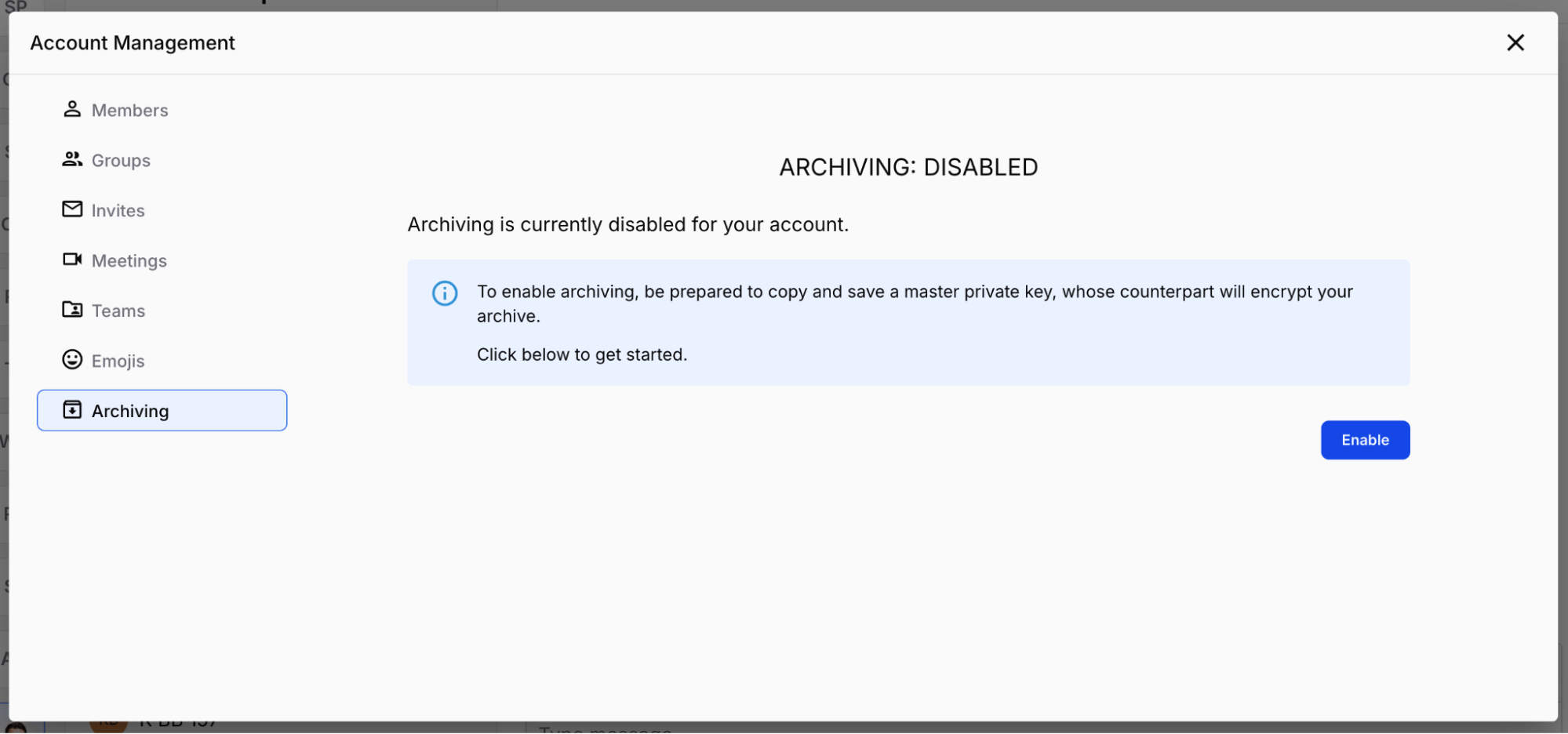
If your organization has compliance or legal-hold requirements demanding a retained, retrievable record of communications, enable archiving before you invite a single person. Archiving captures content from the moment it's turned on; earlier messages are not retroactively archived.
To enable:
- Click the down arrow next to your workspace name.
- Navigate to Manage [your workspace].
- Select Archiving and click Enable.
- Capture the encryption key the moment it appears. Store the result somewhere durable and access-controlled (a secrets manager, an encrypted file vault, a sealed envelope in a safe — whatever your org uses for break-glass credentials).
- Confirm with at least one other person on your security or compliance team that the key has been recorded.
If archiving isn't required, skip ahead.
STEP 2Create your first groups
Before inviting people, set up a small starter set so new members land somewhere on day one. A good baseline:
announcements— Open, Broadcast. Leadership posts; everyone reads. Replaces company-wide email blasts.general— Open, Normal. The watercooler. Low signal, high inclusion. Sets the tone that GLYPH is the place to talk.- One Private Normal group per team or function — Engineering, Sales, Ops, etc. Created up front so members aren't waiting for someone to spin them up later.
For each group, walk through the four knobs from §4 deliberately. Get visibility right, get posting mode right (it's permanent), pick CRYSTALS. Leave Preserve Chat History disabled unless you have a clear reason otherwise.
STEP 3Invite your members
Once your starter groups exist, invite people. The full invitation playbook — flows, walkthroughs, pending invite management — is its own section: §6. Inviting Members.
Two reminders before you head there:
- Attach groups to every invite. New members land in those groups on first login instead of staring at an empty group list. Biggest first-day UX improvement available.
- Assign the right workspace role at invite time. Default to User. Reserve Admin for the few who genuinely need it. Use Guest only for external collaborators. See §3.
STEP 4Get comfortable with the member admin panel
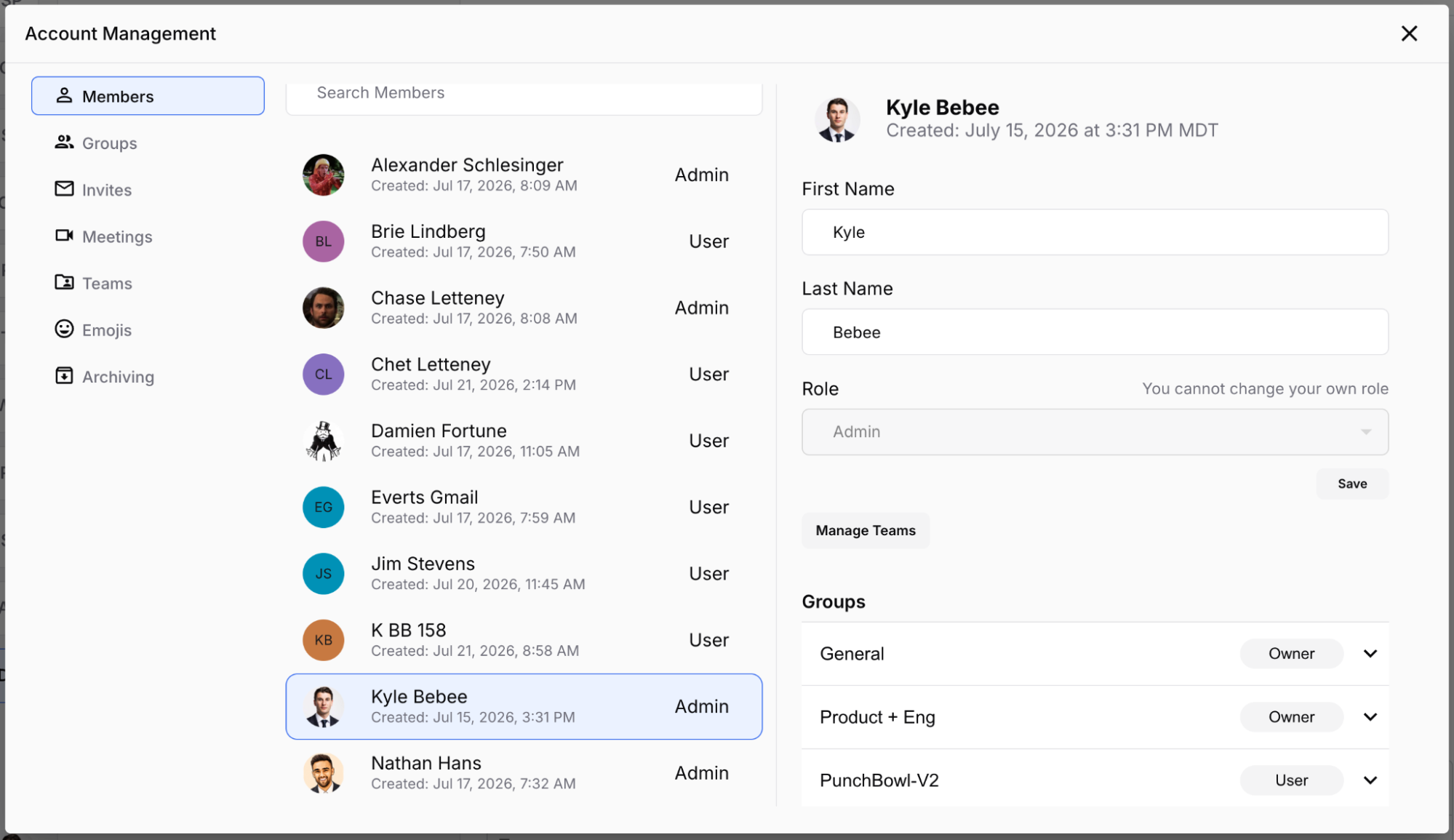
Once people start joining, the web admin panel at glyphapp.io/admin/members/ is where you'll spend most of your time. Two views to know:
- Quick view — click a member's name to open a compact profile. Edit first name, last name, workspace role. Changes save automatically. Delete also lives here; treat it as load-bearing (see §7, implication 3).
- Detailed view — hover and click the
>caret for a fuller profile: team memberships, group roles, device-level participation per group.
Spend ten minutes clicking around on your own account before you need to use it under pressure.
STEP 5Educate your team
The platform is only as effective as your members' comfort with it. On rollout day or shortly after, run a short training covering:
- Difference between a DM and a group, and when to use each.
- How to start and join a video huddle.
- How to manage notification settings (prevents the "GLYPH is too noisy" complaint).
- How to manage devices, especially removing old phones and laptops promptly.
- That each device must be added to every group it needs — joining the workspace doesn't add a device to any group, and a device that isn't added receives none of that group's messages.
- Where to find help: help.sentriqs.com and support@glyphapp.io.
Quick reference: Rollout guide for admins.
Inviting members
Bringing people in is one of your most frequent admin tasks — during initial rollout and continuously as new hires, contractors, and external collaborators come on board. GLYPH offers three invitation flows plus a management surface for everything you've sent.
Where to find it
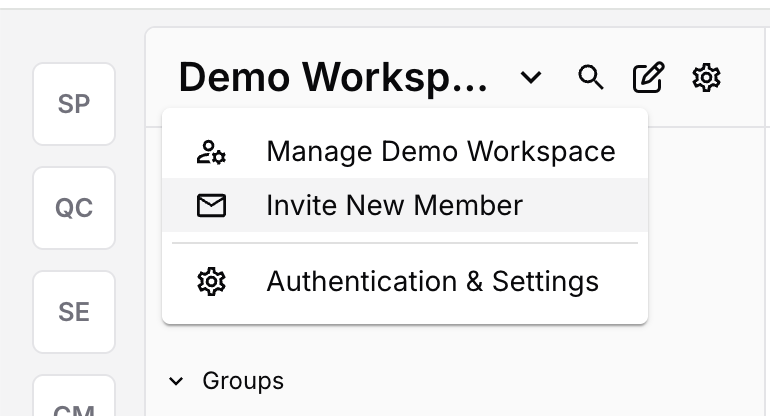
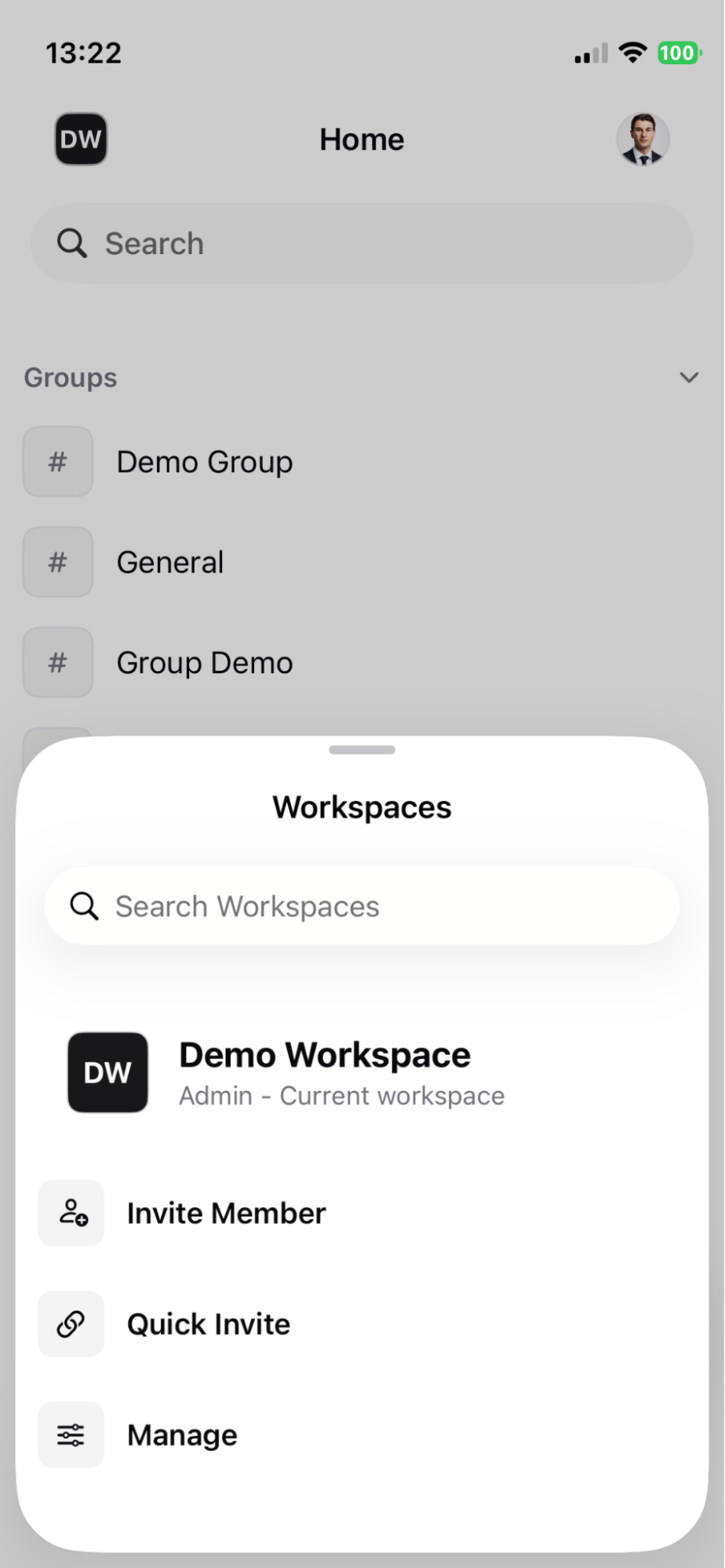
- Web —
glyphapp.io/admin/invite, or click the down arrow next to your workspace name → Invite New Member. - Mobile — tap your workspace avatar → ellipsis (
…) → Invite New Member. - Role required — Admin or Manager. Users and Guests cannot invite.
- Web
- Mobile
Individual invites — for one-off adds
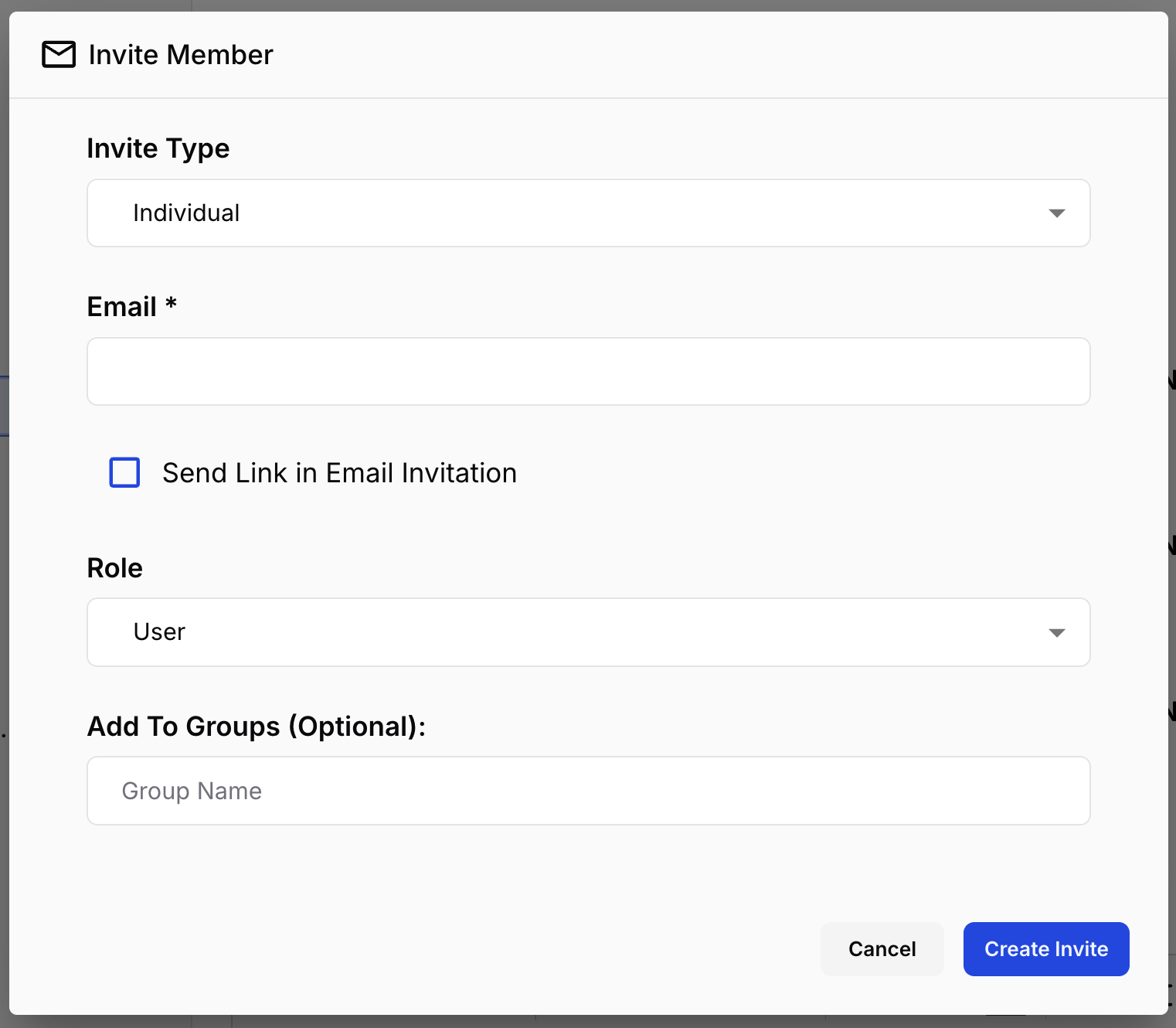
Use Individual invites for single-person adds: new hires, contractors, vendors, board members.
Steps
- Open the invite screen.
- Choose Individual.
- Enter the recipient's email — this becomes their GLYPH login.
- Choose delivery:
- Send Link in Email Invitation (checked) — GLYPH emails the invite.
- Unchecked — GLYPH generates a link + QR code for you to share through any other channel.
- Select workspace role (see §3).
- Attach groups (recommended).
- Click Send.
Things to know
- Invites expire 7 days from creation.
- Resend, edit, or revoke from Pending Invites.
- Unchecked email delivery → the link is yours to distribute; GLYPH won't send it anywhere.
Mass Onboarding — for rollouts and bulk adds
Use Mass Onboarding for many people at once, or to add a large group of existing members to one or more new groups in a single move.
Steps
- Open the invite screen.
- Choose Mass Onboarding.
- Enter a Campaign Name — descriptive enough to recognize it in pending invites weeks later. E.g.,
Engineering Migration — May 2026orQ3 Vendor Onboarding. - Set a start date and time — the earliest moment someone can use the link.
- Set an end date and time — when the link expires.
- Select workspace role — User or Guest.
- Attach groups (recommended).
- Click Send to generate the invite link and QR code.
Things to know
- A single Mass Onboarding link can be used by many people. Treat it like a shared credential: distribute deliberately, revoke from Pending Invites if it leaks.
- Existing workspace members can also use the link — and any attached groups get added to their group list too. Makes Mass Onboarding the fastest way to bulk-add existing members to new groups.
- Mass Onboarding can grant only the User or Guest role — not Manager or Admin.
Use Mass Onboarding when
- Time-bounded events (kickoff, training, all-hands) where everyone onboards within a defined window.
- Crisis events — incident response, security incident, emergency coordination. Create the group, generate a Mass Onboarding link with that group attached, distribute through existing escalation channels.
Quick Invites — for in-person hand-offs (mobile only)
Mobile-only shortcut for sharing a one-time invite link via AirDrop or any out-of-band channel. Convenient when you're standing next to the person you're adding.
Steps (mobile)
- Tap your workspace avatar to open the workspace list.
- Tap the ellipsis (
…) menu next to your workspace. - Tap Quick Invite.
- Choose AirDrop or another out-of-band sharing method.
Things to know
- Quick Invites grant the User role only. Change later from the member admin panel if needed.
- The link is single-use and short-lived.
- No groups attached. The recipient lands in an empty workspace and joins groups manually (or you add them after).
Use Quick Invites when speed and proximity matter more than configuration: a new hire on day one, a vendor walking into your office, a partner you're meeting in person.
Attach groups to every invite (whenever you can)
Whichever flow you use, attach at least one group. The new member arrives with somewhere to read, somewhere to post, and a clear signal that they're "in." An empty group list on day one is the most reliable way to make someone feel lost in a new tool.
For Mass Onboarding, attached groups also apply to existing members who use the link. That makes a Mass Onboarding link with groups attached useful well beyond initial onboarding.
Pending Invites
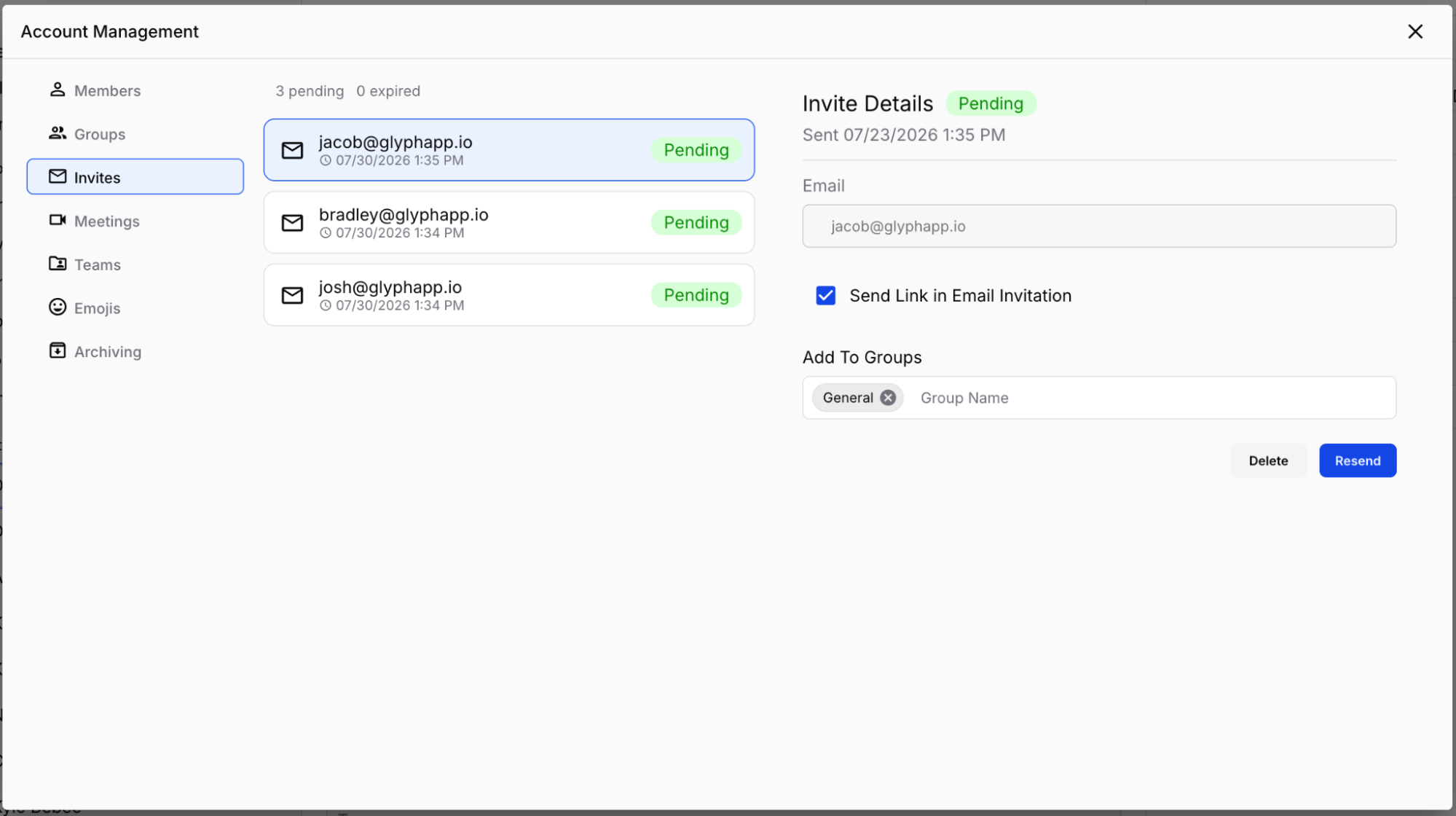
Every invite you've sent — and not yet used or revoked — lives at glyphapp.io/admin/invites/. The view shows each pending invite by recipient email (Individual) or campaign name (Mass Onboarding) and its expiration date.
For each pending invite you can:
- Resend — generates a new invite link. The previous link is invalidated immediately. New links are valid for 7 days. Optionally check Send Link in Email Invitation to email it directly.
- Edit — adjust attached groups, workspace role, or other fields before resending.
- Delete — invalidates the invite and removes it from the view. Use this when you've changed your mind, invited the wrong person, or suspect a link has been over-shared.
Strikethrough entries are expired. Harmless; delete them to keep the view tidy.
A few hygiene habits
- Check this view weekly during active rollouts. Stale invites accumulate quickly and obscure the ones you actually need to act on.
- Revoke promptly when something changes. If someone supposed to receive an invite leaves the org before they accept, delete it. If a Mass Onboarding link's intended use is done, delete it.
- Don't let Mass Onboarding links live forever. Set realistic end dates; revisit if a campaign is going long.
Quick reference: Account roles.
The security model — and what it means for you
GLYPH's security model is the reason most of the platform exists. It's the single biggest difference between running a GLYPH workspace and running a Slack or Teams tenant. This section spends a minute on what GLYPH does cryptographically, then more time on the part that actually changes your job: what that means for the decisions you make as an admin.
How GLYPH protects your content
Two technologies do most of the work.
MLS (Messaging Layer Security) — IETF standard for end-to-end encrypted group messaging, defined in RFC 9420. The protocol that lets a group of any size share keys, add and remove members, and keep their conversation private from everyone outside the group — including the server delivering the messages. MLS gives groups two properties that matter for admins:
- Forward secrecy — even if a key is compromised today, older messages stay protected.
- Post-compromise security — once a compromised member or device is removed, the group recovers and future messages are again private. Removal is real, not cosmetic.
Post-quantum cryptography (PQC) — the second layer. Traditional public-key encryption (like Elliptic Curve) is secure against today's classical computers but is expected to fall to sufficiently powerful quantum computers in the future. The threat isn't only future-tense — adversaries can record encrypted traffic today and decrypt later once quantum hardware matures (the "harvest now, decrypt later" problem). GLYPH addresses this via NIST-approved post-quantum algorithms — currently CRYSTALS — through the crypto-agility framework introduced in §4. New standards get added as they emerge.
Together: MLS shapes the protocol (who can read what, how membership changes), PQC determines the math (how the underlying keys resist attack). You don't need to think about either day-to-day. You do need to understand the consequences they impose on your admin work — which is what the rest of this section is about.
What this means for you as an admin
Four implications. Internalize these and you'll avoid the most painful surprises GLYPH has to offer.
Running the workspace day-to-day
Once the workspace is live, your job shifts from setup to operations. This section is a reference for the recurring tasks you'll do as members come, go, change roles, and reorganize.
Adding a member to existing groups
Two paths, depending on whether the member is new to the workspace or already in it.
New member, joining specific groups on day one. Use the invite flow (§6) and attach the relevant groups. The member lands there automatically on first login.
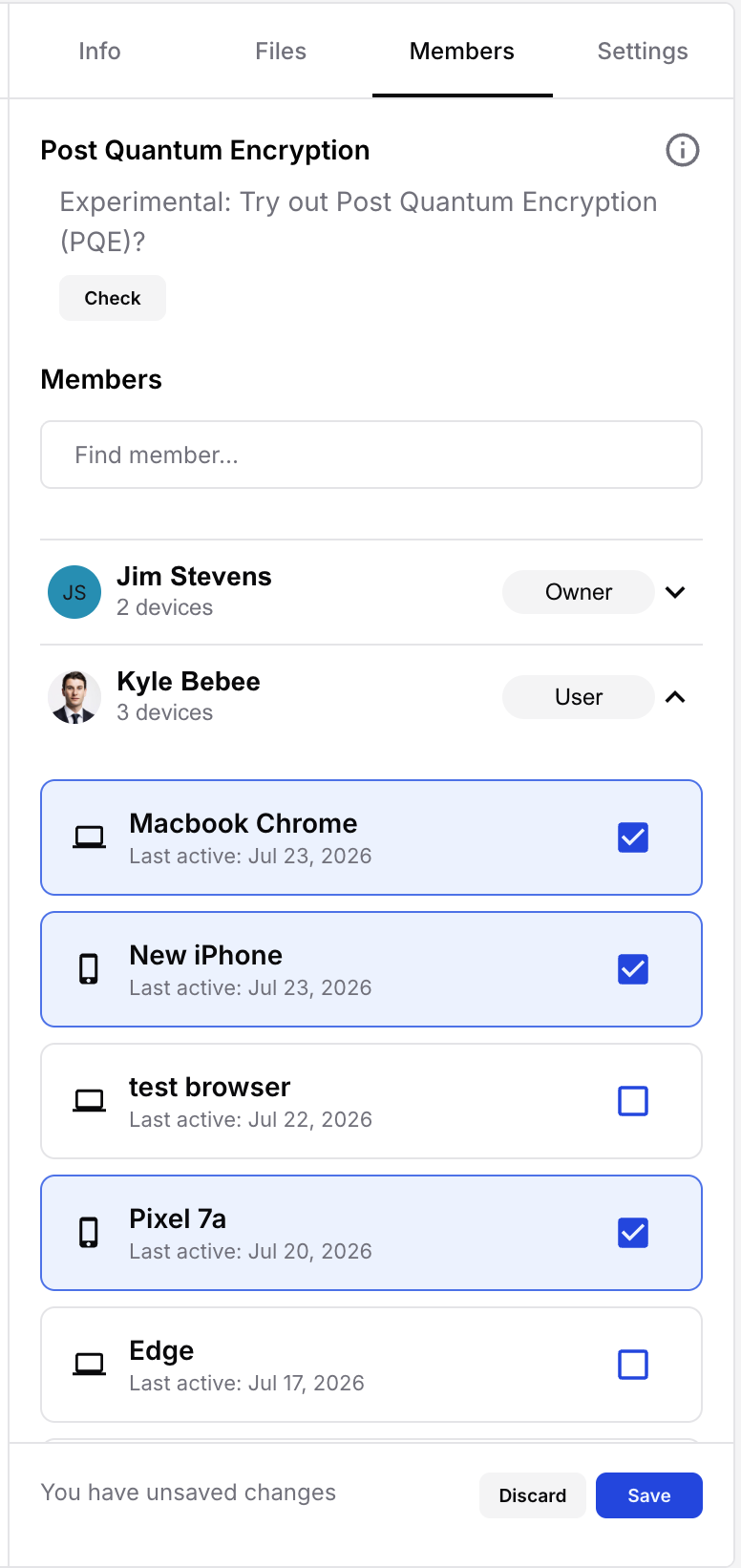
Existing member, joining a group later. Open the group → ellipsis (…) → Members → search for the user → expand their device list → select at least one device → Save. Or, if you're a workspace Admin or Manager, do the same from the member's detailed view in the admin panel.
Either way: you're choosing which devices are in the group, not just adding a person. If the member has three devices and you select one, the other two aren't in the group — they won't receive its messages at all.
Removing a member
Two flavors of removal, not interchangeable:
- Remove from a specific group — open the group, find the member, deselect all their devices, save. Revokes their access to that group only; existing content is not burned. Member remains in the workspace and other groups.
- Remove from the workspace entirely — from the member admin panel, open the profile and use Delete. Removes from every group, burns your workspace's content from every device, ends the workspace relationship.
Workspace removal is immediate and irreversible — the content burn cannot be undone. If unsure, remove from a single sensitive group first and confirm the right behavior before doing a full workspace removal.
Promoting and demoting roles
Roles live in two places — workspace and group — so the path depends on which one you're changing.
- Workspace role (Admin / Manager / User / Guest) — change from the member admin panel at
glyphapp.io/admin/members/. Open the profile, edit the role field; changes save automatically. - Group role (Owner / Manager / User / Observer) — change from inside the group's Members view, or from the member's detailed admin-panel view under Group Roles.
Good habit: when you promote to a sensitive workspace role, reflect the change in your offboarding runbook. Admins and Managers leave a different-shaped hole than Users.

Archiving vs. Clear & Delete a group
Two ways to retire a group; they mean very different things.
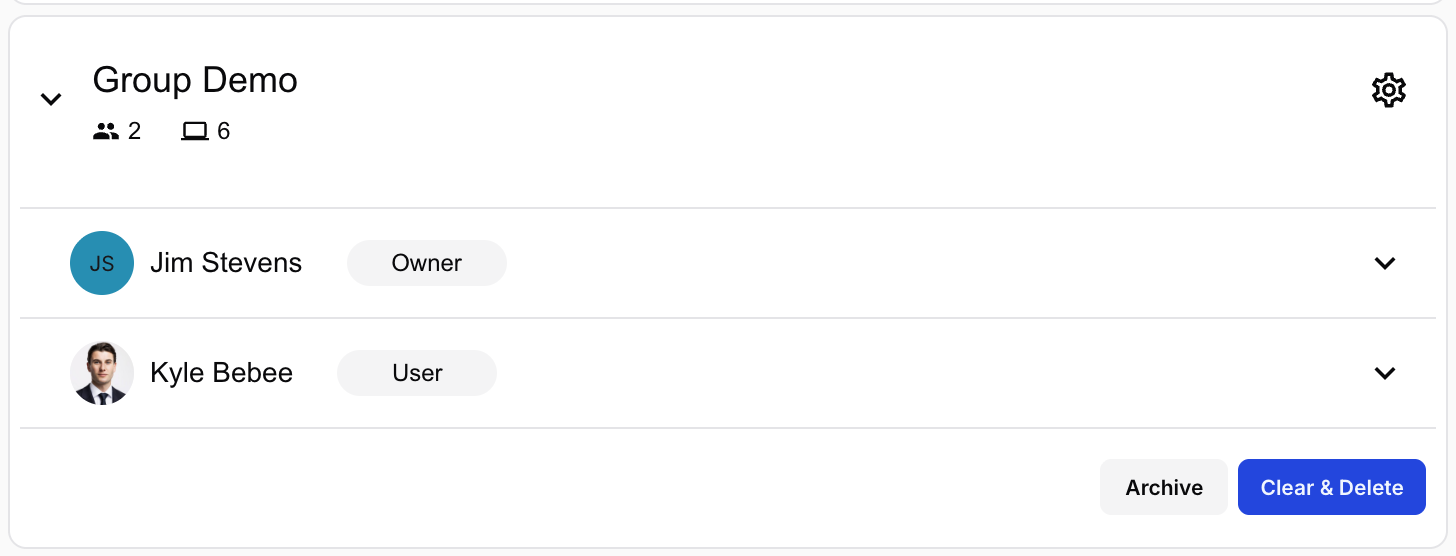
- Archive — hides the group and removes it from members' group lists. Content preserved. Unarchive at any time to restore the group and all prior content. Reversible. Use for completed projects, retired teams, seasonal initiatives.
- Clear & Delete — permanently deletes the group and erases content from every member's device. No undo, no recycle bin, no support recovery. Use only when the content should genuinely cease to exist.
Both performed from the group admin panel at glyphapp.io/admin/groups/. Quick view shows Archive; detailed view exposes Clear & Delete. The asymmetry is intentional — Clear & Delete takes one extra click for a reason.
Teams
Teams are how you address cross-cutting groups of people by name (see §2 if you need to refresh on what they are).
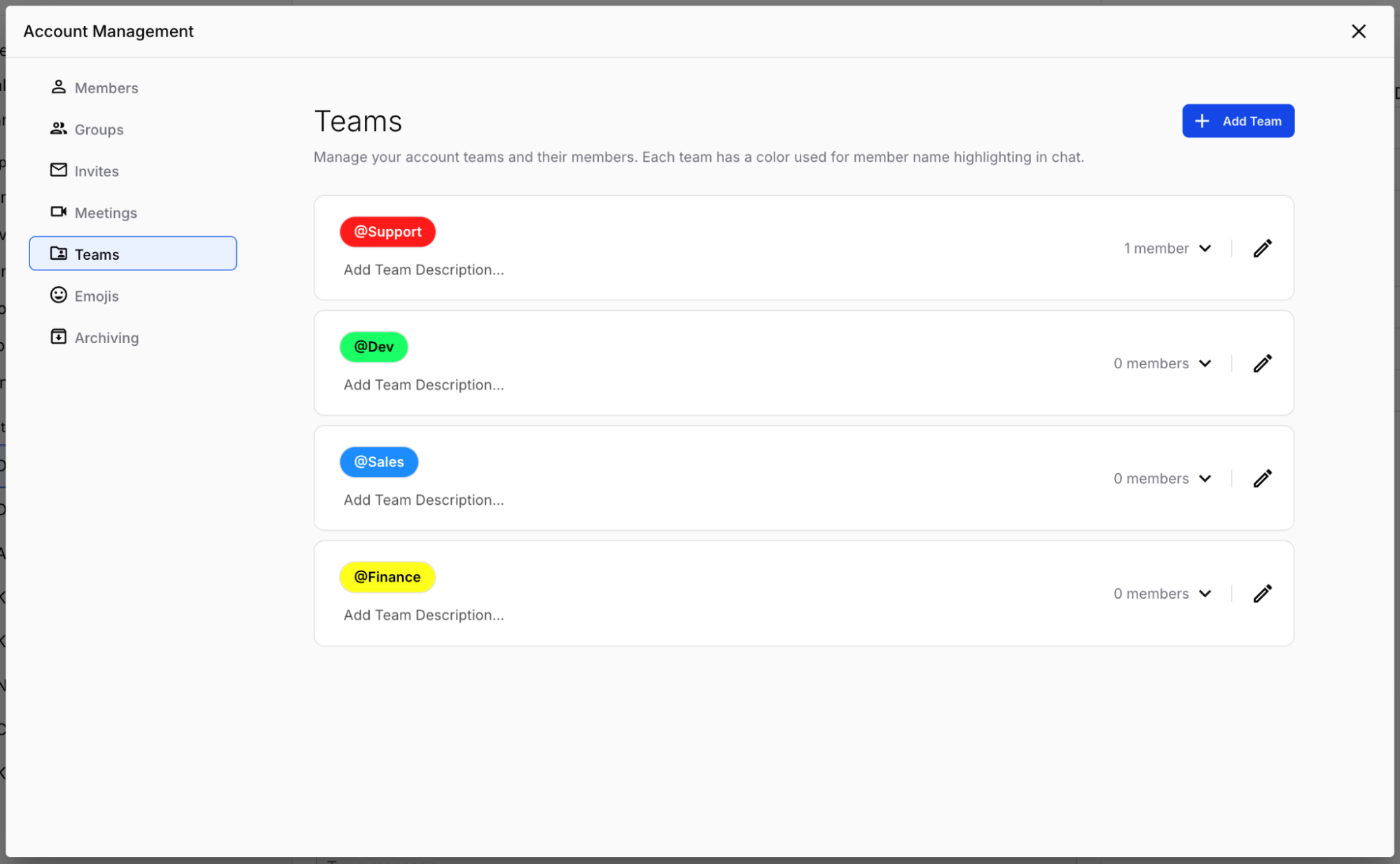
- Create a team from
glyphapp.io/admin/teams/. Click Add Team, name it, give a description and color, confirm. Edit or delete from the pencil icon. - Add members to a team from the member admin panel. Open the detailed view → Manage Teams → select team(s) → confirm.
- Use a team by typing
@team-namein any group message. Notifies team members who are already in that group. Team members who aren't in the group don't get notified and don't gain access — enforced by the encryption model, not configuration.
Good rule: create teams sparingly. A team wrapping three people who already work in the same project group adds noise, not signal. A team that spans groups (@engineering-leads, @on-call, @security-team) earns its keep.
Quick reference: Manage workspace members, Manage workspace groups, Manage workspace teams.
Device management
GLYPH treats every device as an independent participant — a property that gives the platform its zero-trust security and that adds a dimension to admin work.
Why devices matter
Every time a user logs in from a new phone, laptop, or browser, that device is authenticated and added to their personal device list. The device gets its own cryptographic identity. From that moment on, every group the user is in makes an independent decision about whether that specific device can decrypt content.
The practical consequence: you don't add people to groups, you add device-membership pairs. A user with three devices in ten groups = potentially thirty separate trust decisions. Most of the time you'll add all of a member's devices to a group at once and never think about it again — but the model is per-device, and that surfaces whenever something interesting happens (lost phone, departed employee, hardware refresh).
Managing your own devices
Do this for yourself first; it's also what you'll teach members.
- Web
- iOS
- Android
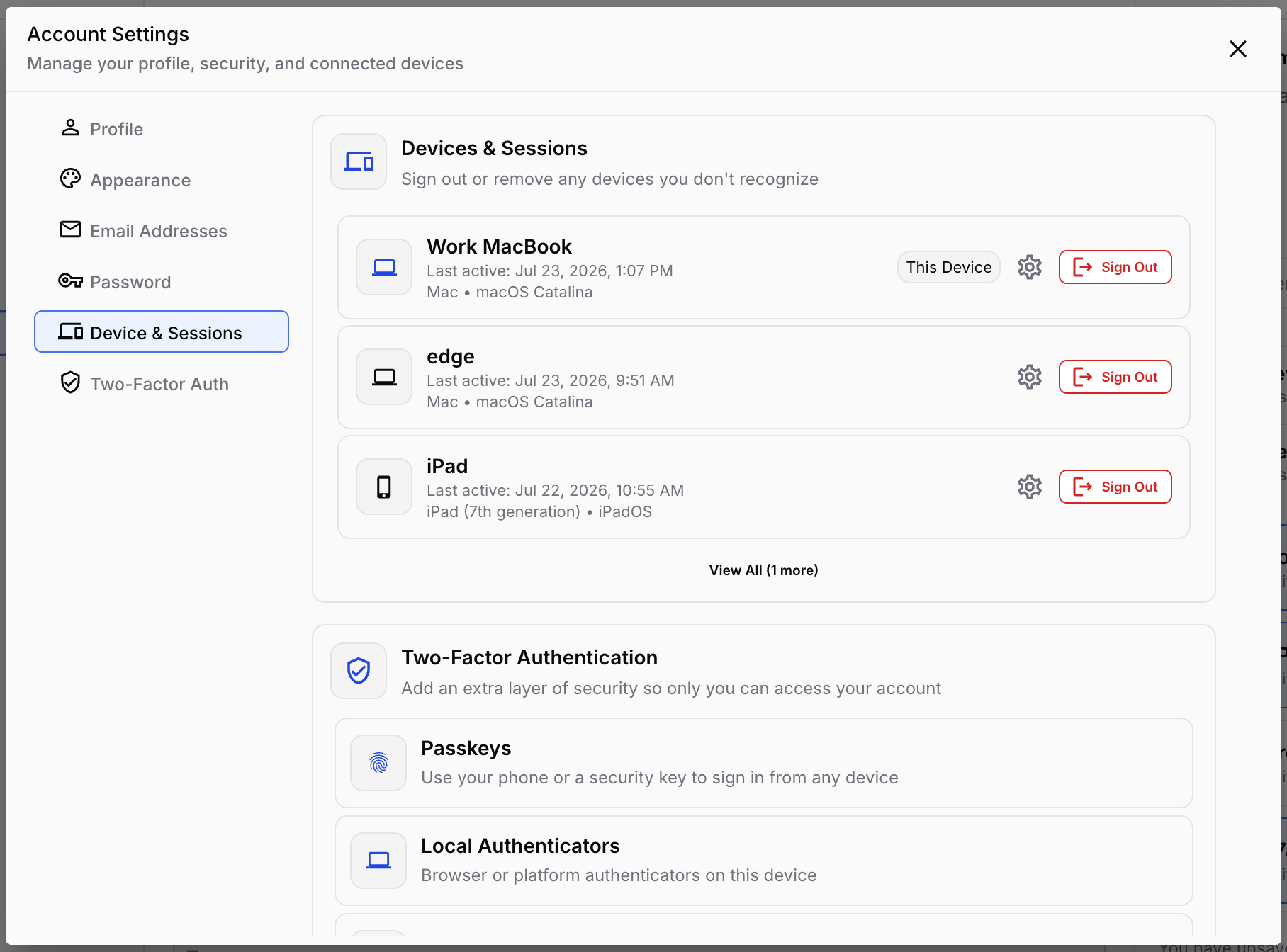
- Click the down arrow next to the workspace name → Authentication & Settings → My Devices → Manage My Devices.
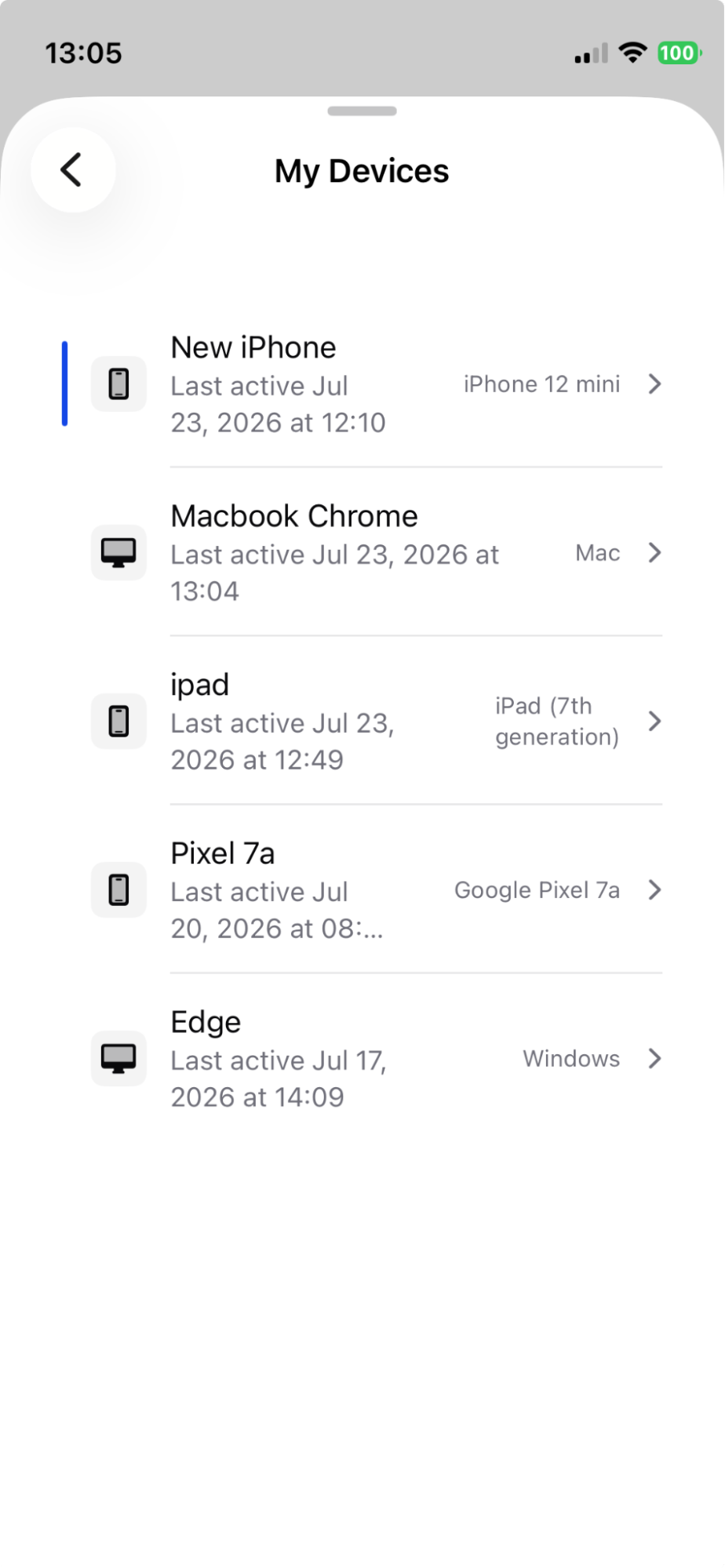
- Tap the workspace icon → Settings → My Devices.
- Tap the gear icon → My Devices.
The device list shows every device currently registered to your account; remove any you no longer use. Remove a device whenever you replace hardware, sell a laptop, or lose a phone — it cuts that device off from every group it was in.
Managing other members' devices
Workspace Admins and Managers can see and adjust any member's devices from the admin panel.
- Open
glyphapp.io/admin/members/and find the member. - Hover and click the
>caret to open the detailed view. - The Group Roles section shows each group the member is in and which of their devices are participating.
- Remove individual devices from a group (revokes that device's access to the group), or use Remove All to remove the member from the group across every device.
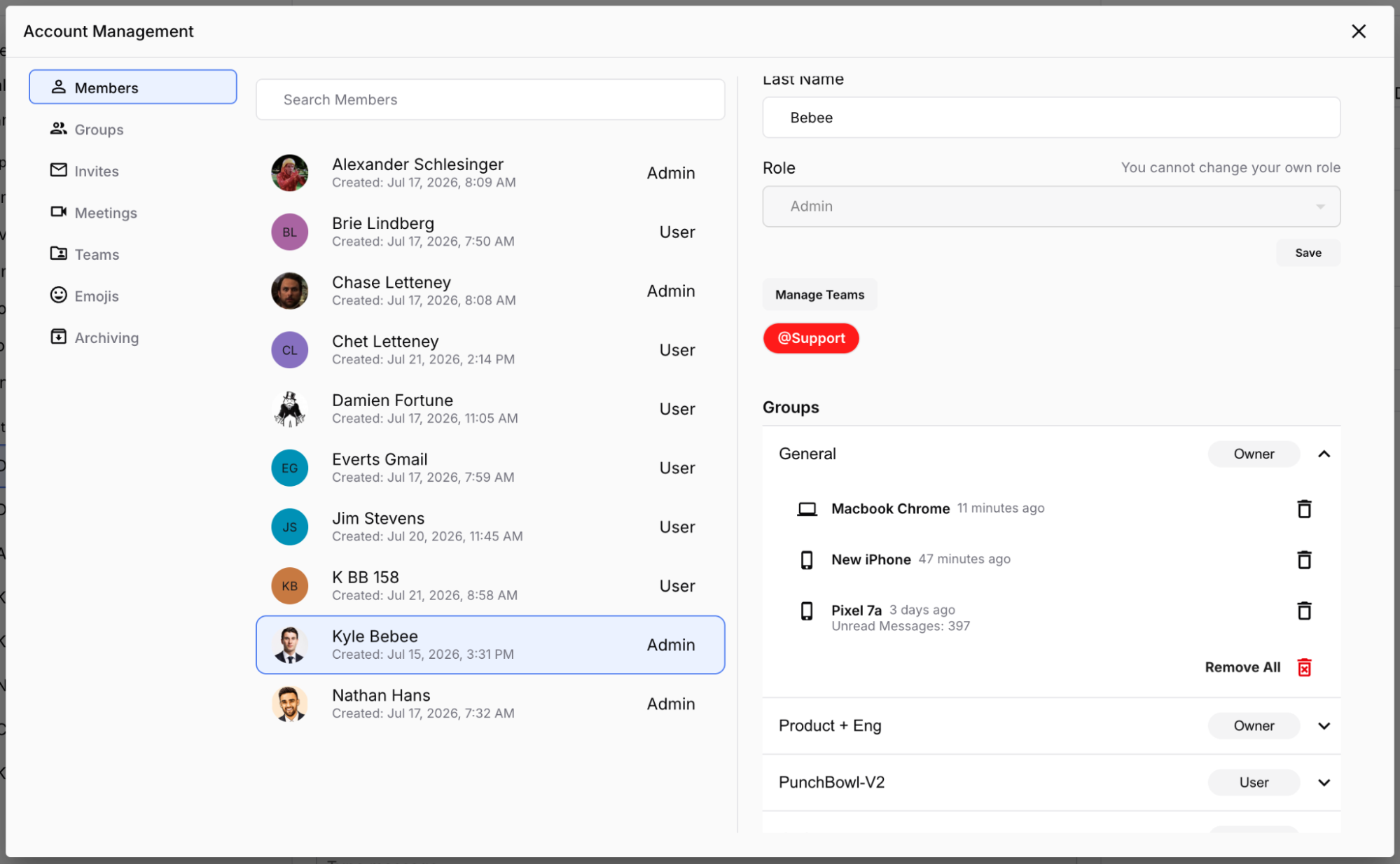
Use this workflow for lost/stolen device reports, departing employees, or cleaning up after a member who hasn't curated their own device list. Don't wait for users to do this themselves on critical groups — verify directly.
Deleting the app or clearing browser data wipes the device
GLYPH stores a device's content and encryption keys locally on that device. Deleting the GLYPH app — or clearing browser data for GLYPH on a web device — erases all of it. There's no recovery: GLYPH treats a wiped device as gone, and the user has to set up a fresh device from scratch and re-join every group it needs.
Worth flagging to members: reinstalling the app or clearing browser cache to troubleshoot effectively starts that device over. Re-add the fresh device to its groups afterward.
Common gotchas — "I wish I'd known"
Things that bite new admins. Read once, then come back any time something feels off.
Getting help
You won't memorize this on first read. Bookmark these.
Maintained alongside the product; source of truth when this handout drifts.
SupportAccount issues, billing, anything the help center doesn't answer.
Promote a second workspace Admin early and share this handout. Fastest help is usually the admin in the next office.
A few things worth remembering when reaching out to support:
- SENTRIQS cannot read your messages, files, or call content. Don't expect support to recover them.
- SENTRIQS cannot recover an archiving key. The key is yours.
- SENTRIQS can help with account recovery, billing, invitation issues, platform bugs, and how features are supposed to work.